Watch your live bots and positions
The positions page is your live mission control. It shows the bots you have running, the positions open on your exchange account right now, the server-side guards watching each one, and a feed of everything that happens. This guide walks you through the kill-switch banner, the KPI tiles, the bot cards, the open positions table, the monitor rules, and the event stream.
Everything here is live
Everything on this page is your live activity on Delta India.
- The page shows your running bots, open positions, balance, and event stream for your live Delta account.
- Confirm the live risk acknowledgement the first time you deploy or trade, because real money can move.
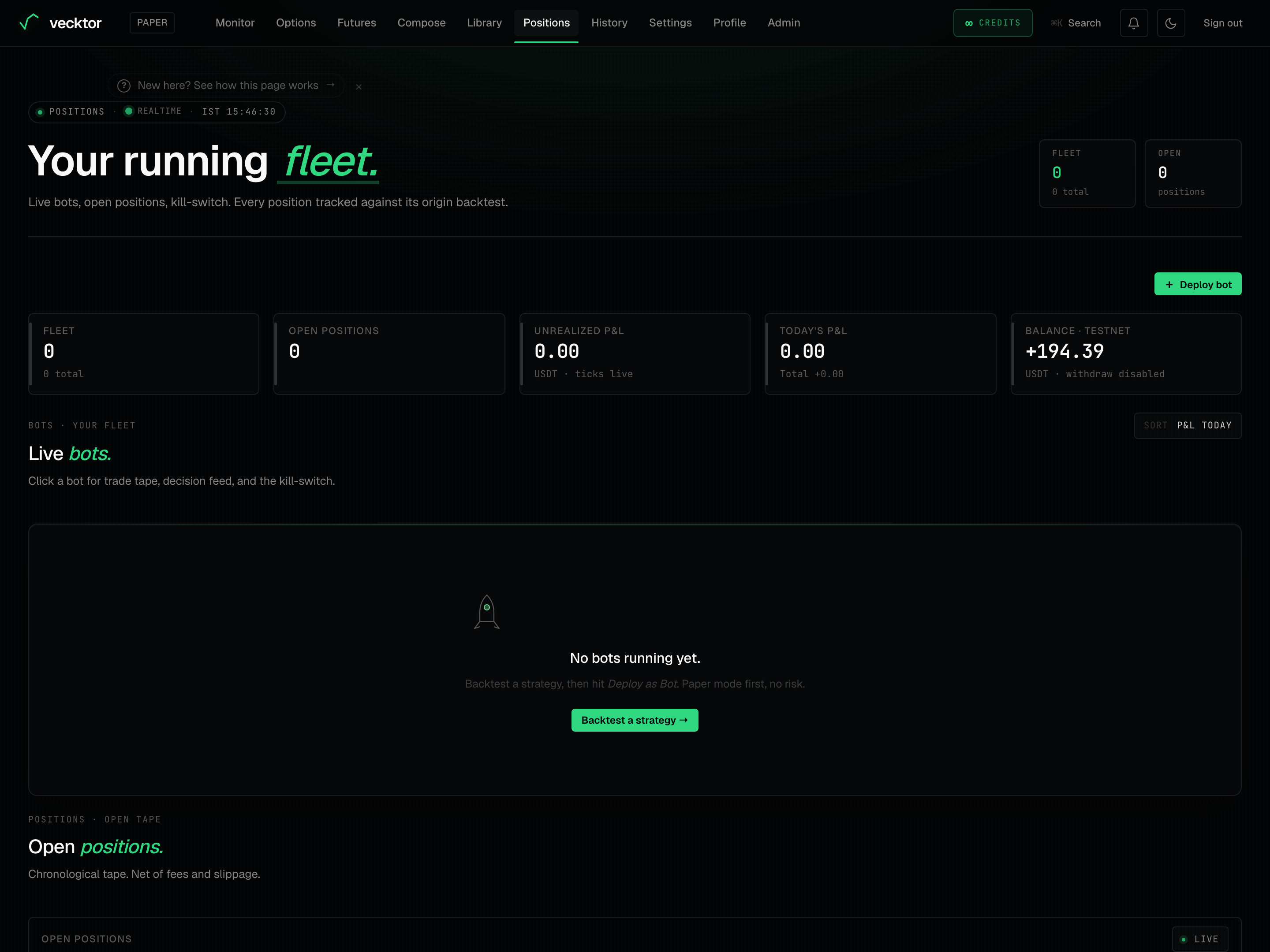 1Live status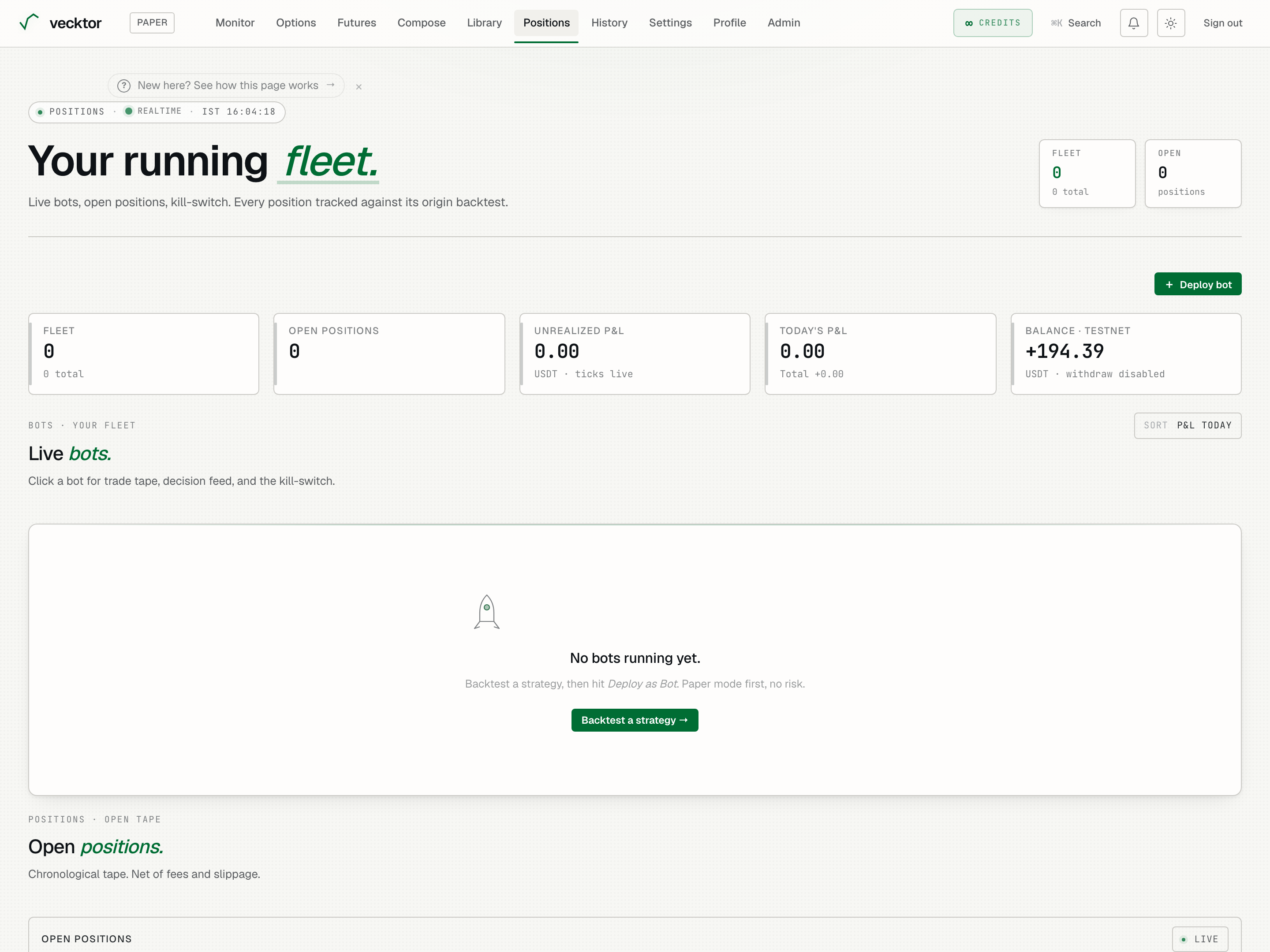
Read the kill-switch banner
The kill-switch is an automatic safety brake (it closes positions and pauses a bot when a risk limit is breached). When it trips, a red banner appears at the top of the page.
- Read the banner heading: KILL-SWITCH TRIPPED. It names the bot, the strategy, the reason, and the percent at the breach.
- Note what the reason says: a daily loss limit, a drawdown limit (worst drop from a peak), or repeated exchange errors.
- Read the line below: positions closed, bot paused pending your review.
- Click Review to open the bot and see exactly what happened.
- Click Dismiss to hide the banner once you have read it.
- Read the heading (the brake has already fired)
- Read the reason (daily loss, drawdown, or exchange errors)
- Note positions are closed (and the bot is paused for review)
- Click Review (opens the bot to see what happened)
- Click Dismiss to hide it (this undoes nothing)
Read the KPI tiles
A row of five tiles across the top gives you the state of your whole fleet at a glance. They update on every refresh.
- Read Fleet: how many bots are running, with paused, error, and total counts beneath.
- Read Open positions: how many positions are open, with their symbols listed beneath.
- Read Unrealized P&L: the open profit or loss across all positions, in USDT, ticking live as marks move (mark = the current price the exchange uses to value a position).
- Read Today's P&L: profit or loss booked today across your bots, with the all-time Total beneath.
- Read Balance · source: your account balance and where it comes from. The sub-line reads withdraw disabled.
 2Open profit/loss, ticks live3Booked today + all-time total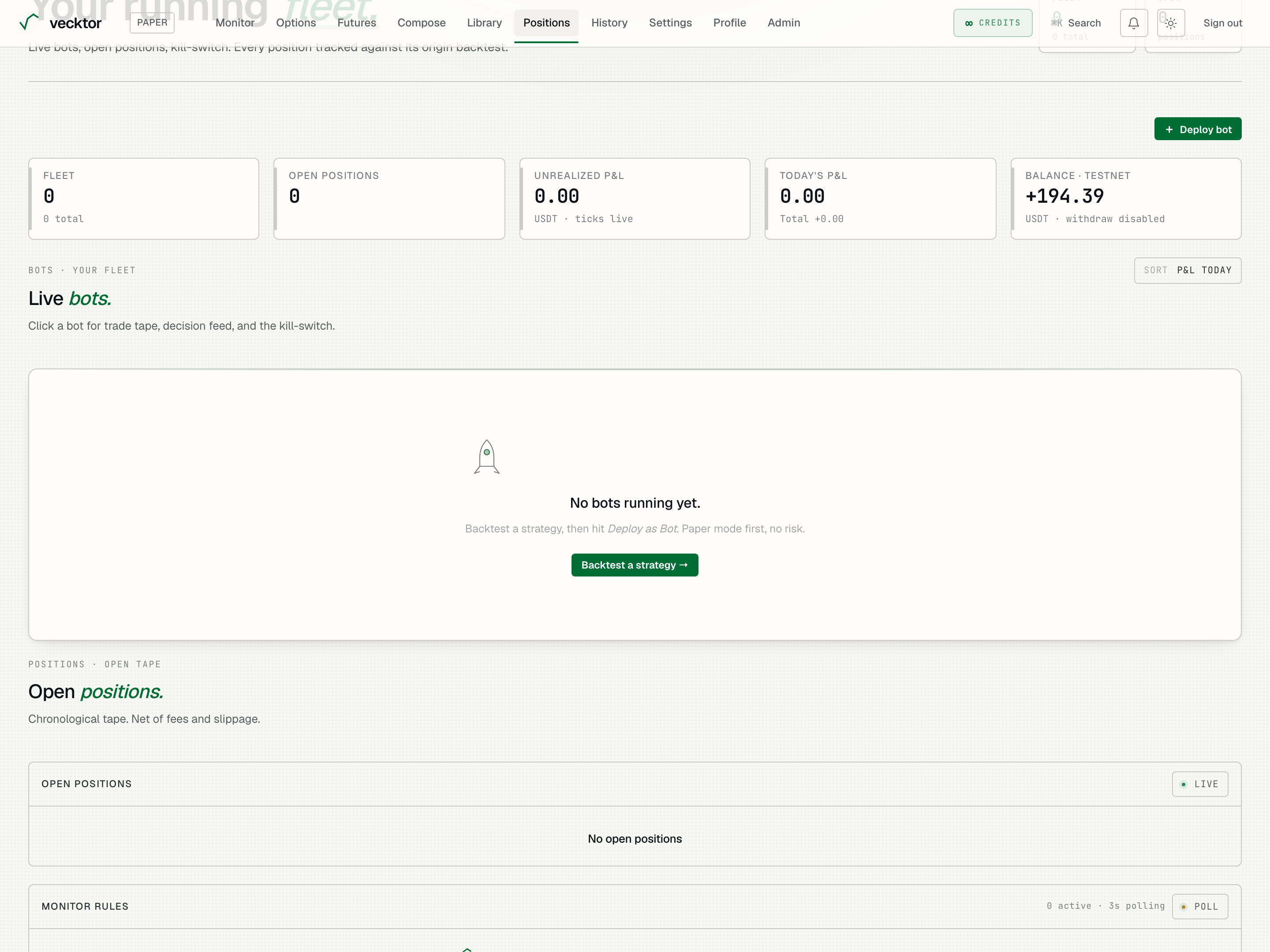
Deploy a bot
A bot is a strategy you have set running. You create one from a backtest, not from this page.
- Click Deploy bot near the top of the page. It takes you to the futures page.
- Backtest a strategy there, then choose Deploy as Bot.
- Start with a small size so your first live bot risks little.
- Come back here to watch it. The bot appears as a card once it is live.
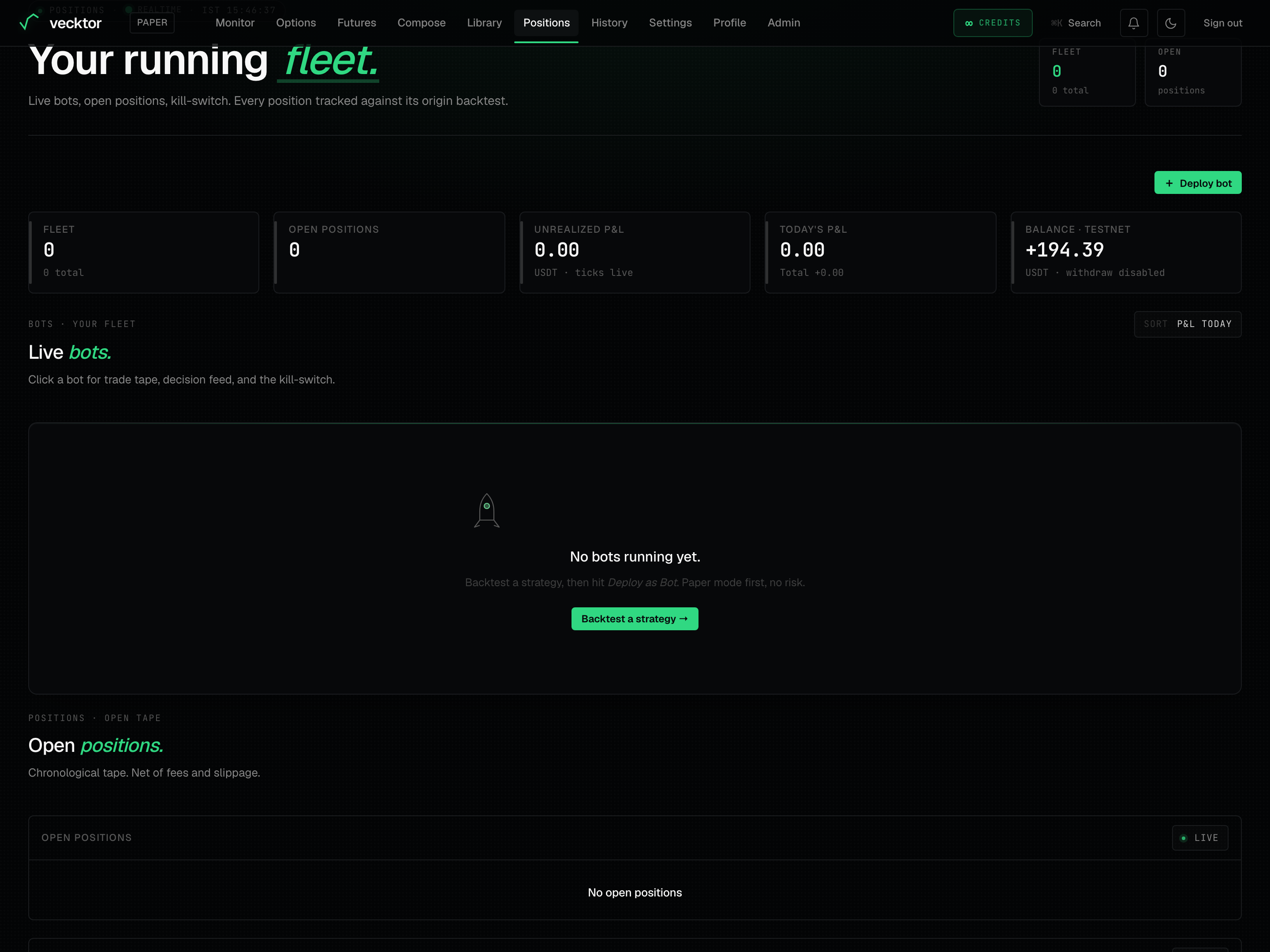 1Deploy bot (goes to futures)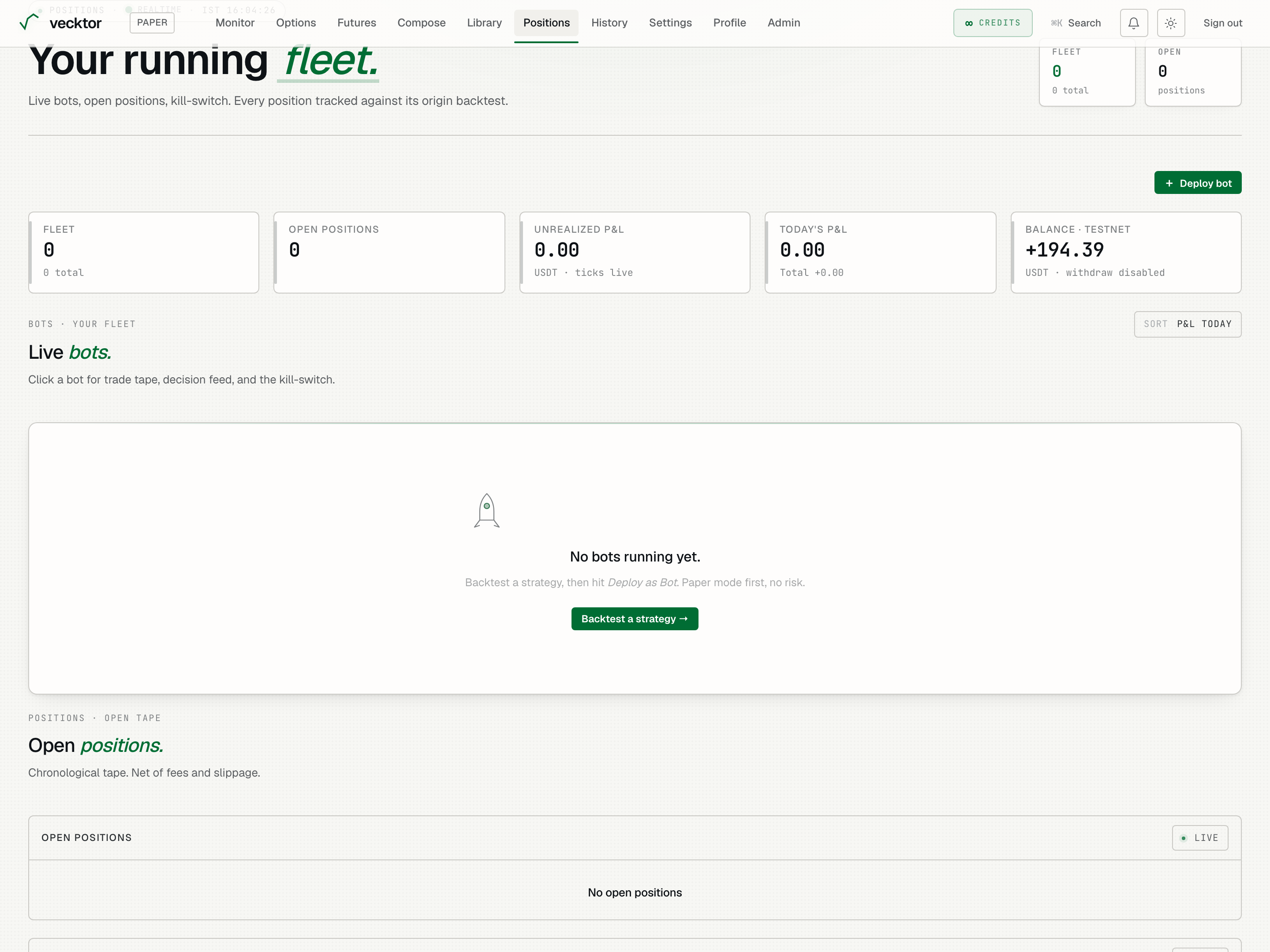
Work a bot card and its actions
Each running bot is a card in the fleet grid, sorted by today's P&L. The card shows the strategy, timeframe, leverage, mode, status, a small equity sparkline, and live numbers.
- Read the card header: bot name on top, then a sub-line of strategy · timeframe · leverage× (e.g. 3× means three times your capital as exposure).
- Read the status chip (RUNNING, PAUSED, or ERROR).
- Read the stats row: P&L today, P&L total, and Heartbeat (seconds since the bot last checked in; it turns amber if it goes quiet).
- Click Pause to halt a running bot, Resume to restart a paused one, or Retry to restart an errored one.
- Click Details to open the bot's own page with its trade tape and decision feed.
- Click Stop to shut the bot down. A confirm box explains it closes open positions and halts the bot, and that you can redeploy it later.
- Click the card body to filter the event stream at the bottom to just this bot.
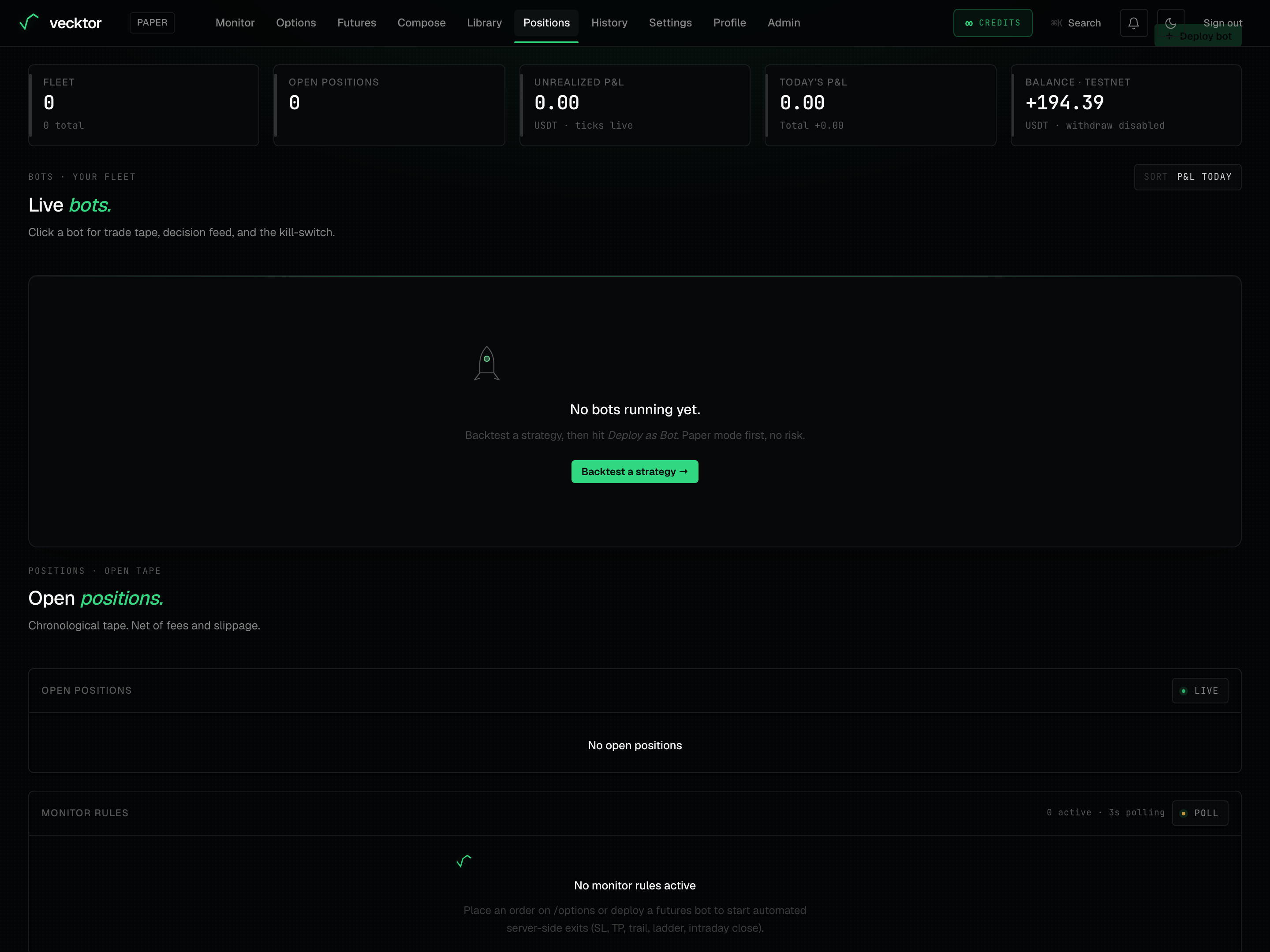 1Your live bot fleet2Click a card to filter the feed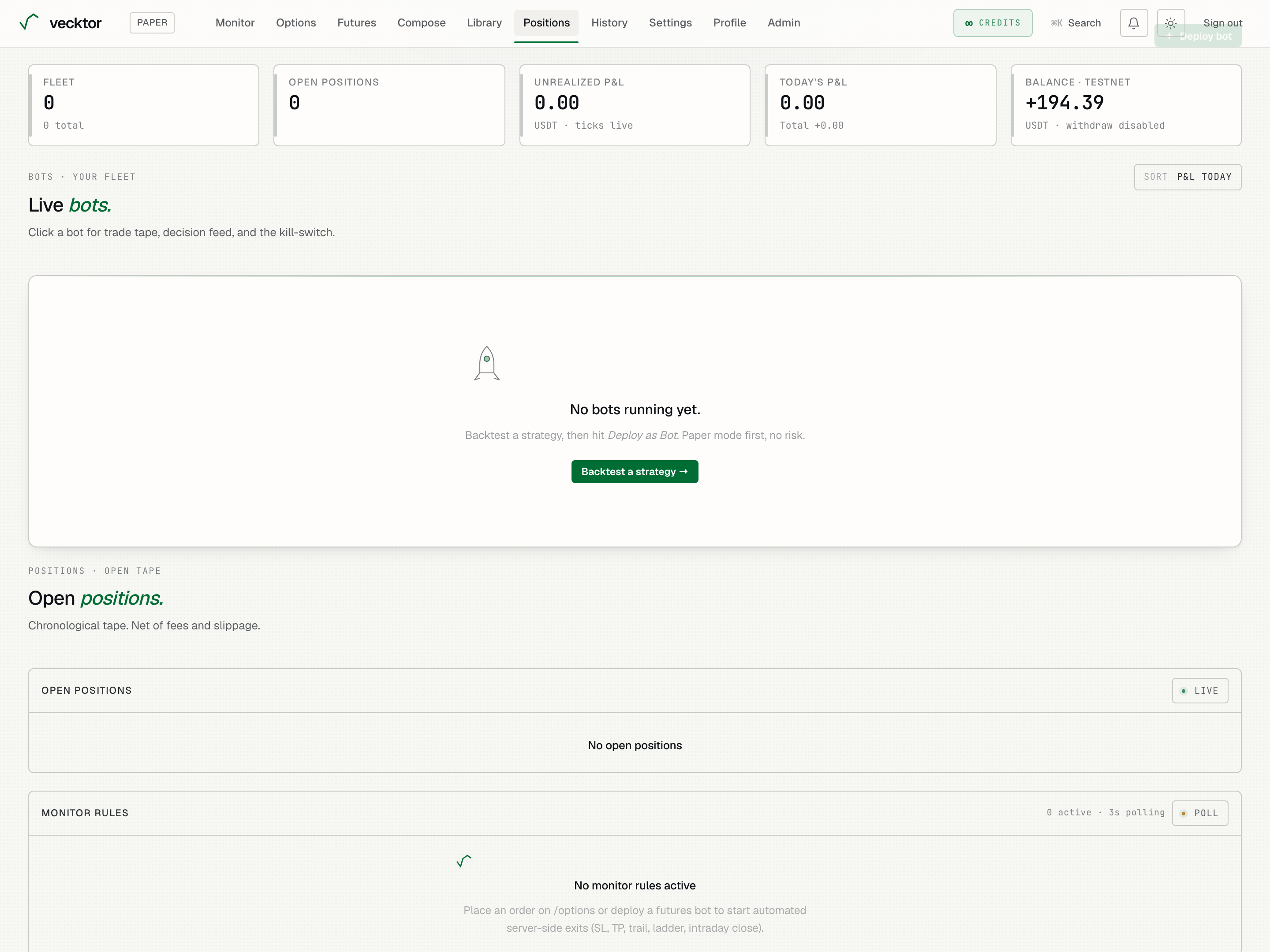
- Read the status chip (RUNNING, PAUSED, or ERROR)
- Check the heartbeat (amber means the bot went quiet)
- Click Pause to halt it (positions and guards stay put)
- Click Details for full history (trade tape and decisions)
- Click Stop to shut it down (closes positions, halts the bot)
Read the options strategy cards
Open option legs (each leg is one option you bought or sold) are grouped by underlying into one card per coin, so an options structure shows as a single fleet entry with its combined P&L.
- Find the Options strategies · live row beneath the bots.
- Read each card: the underlying (e.g. BTC options), the source tag, the Unrealized P&L (combined across the legs), and Legs (the count).
- Note an asterisk (*) after the P&L. It means one or more legs are still reconciling (the entry price is being confirmed from the exchange) and that number is incomplete.
- Close legs in the Open positions table below, not from this card. The card's footer says so: Guarded by server-side monitor rules below (SL / TP / time). Close legs in Open positions.
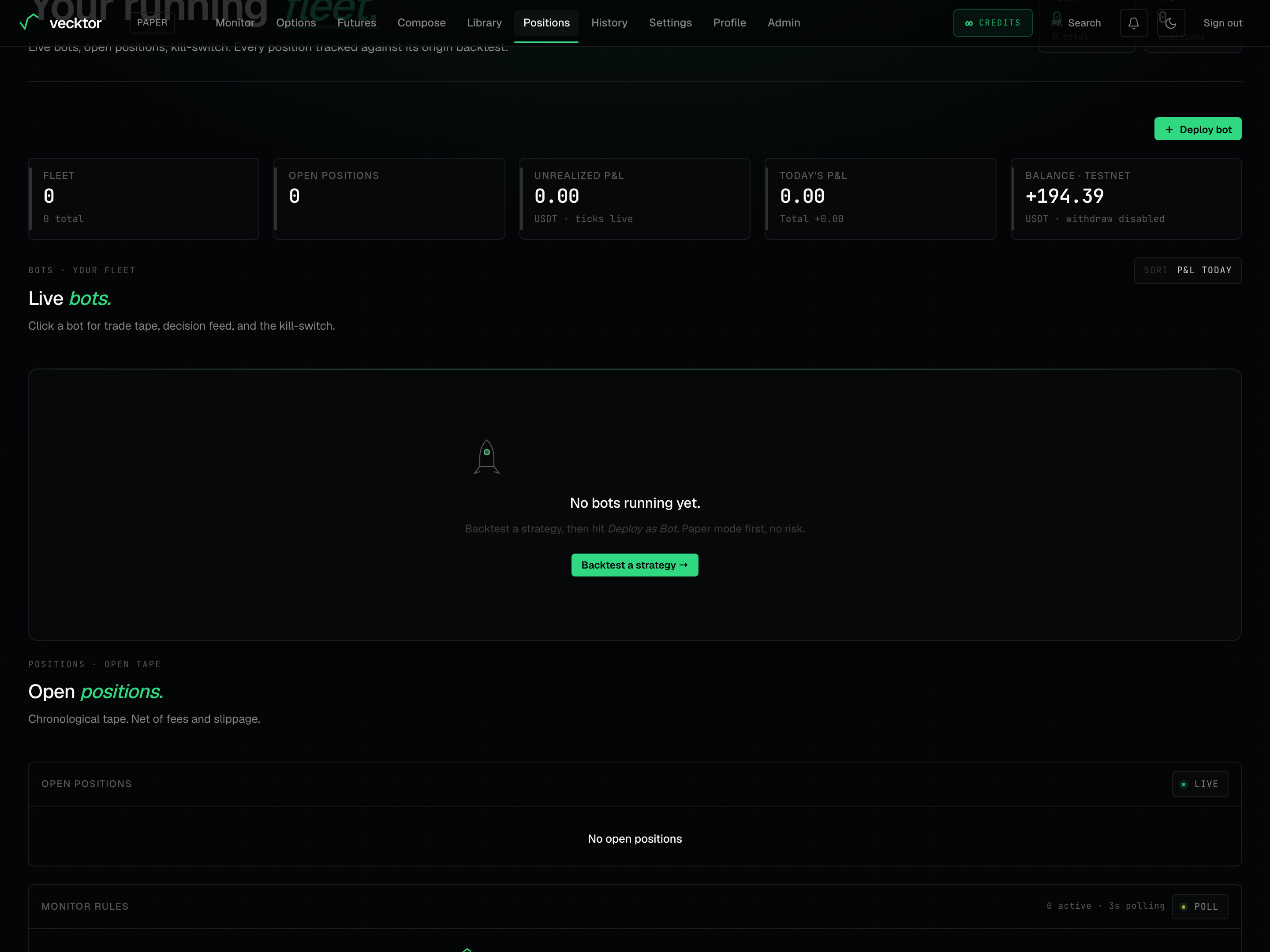
Read and close open positions
The Open positions table is a live tape of everything open on your exchange account, net of fees and slippage (the small gap between the price you expect and the price you get).
- Read the columns across: Symbol, Bot, Side (LONG or SHORT), Size, Entry, Mark, uPnL (unrealized profit or loss), Lev (leverage), Source, and Close.
- Read the Source tag to see where the position came from: BOT, OPTIONS, SCHEDULED, TRADINGVIEW, or MANUAL.
- Rename a bot-owned position inline by clicking its name in the Bot column and typing a new one.
- Close one position by clicking Close in its row. It fires a reduce-only market order for the full size (reduce-only means it can only shrink or close, never open new exposure).
- Close part of a position by typing a number of lots in the small box before Close, then clicking Close.
- Watch the ticks every 5s · last Ns ago note to confirm the marks are live, not stuck.
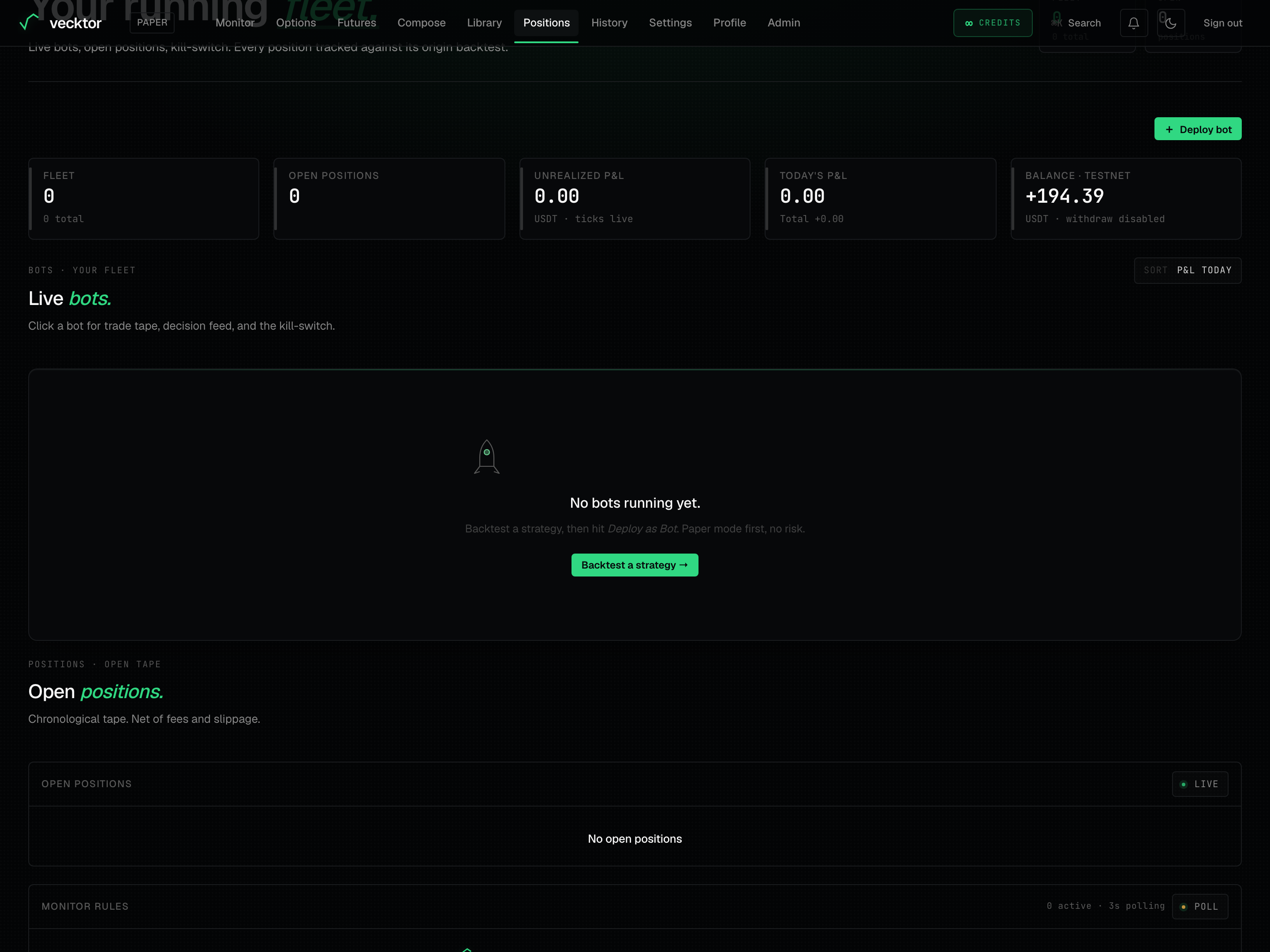 1Live open-position tape2Every number is net of costs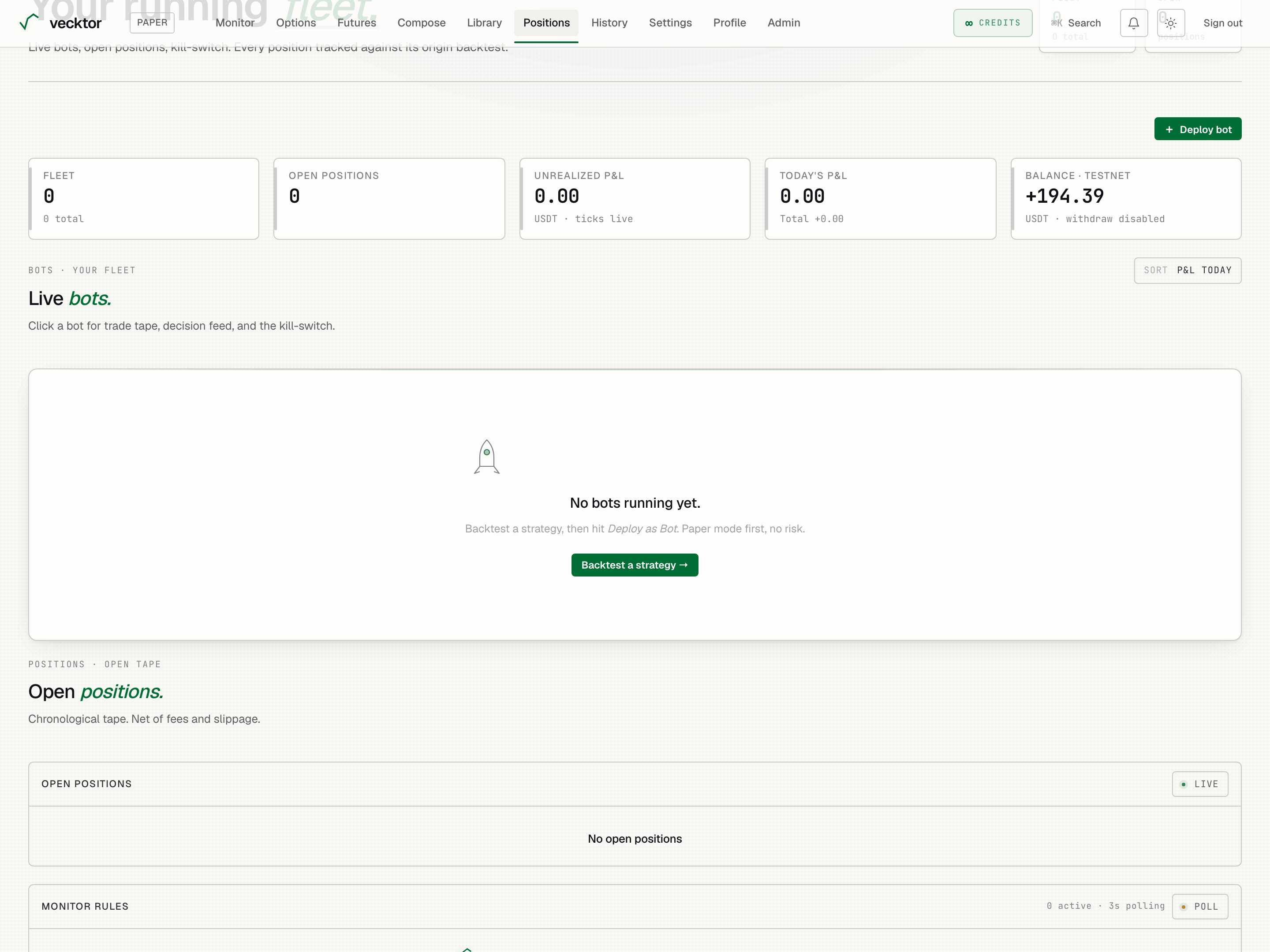
- Read the open P&L (net of fees and slippage)
- Type lots for a partial close (leave empty to close it all)
- Click Close (fires a reduce-only market order, no extra confirm)
Use Close all as the panic button
Close all is the emergency flatten. It sits in the Open positions header and sends a reduce-only market order for every open position at once.
- Click the red Close all button in the Open positions header.
- Read the confirm box: it tells you how many positions will close and that this hits bot positions and one-off positions alike.
- Click Close everything to fire, or Cancel to back out.
- Watch the table empty as the orders fill.
Read the monitor rules (the exit guards)
Monitor rules are the server-side guards watching each open position. They run on Vecktor's side and fire exits even when your browser is closed.
- Find the Monitor rules section. The header shows how many are active and whether exits are WS-driven (a live exchange socket, sub-second) or POLL (a 3-second fallback).
- Read each rule row: side, symbol, the source, the entry size and price, the environment, and the live P&L percent.
- Read the guard chips: SL -X% (stop loss, the cap on a loss), TP +X% (take profit, the target), trail X% (arm Y%) (a stop that tightens as profit grows, armed at Y%), a take-profit ladder (tp1, tp2, tp3 partial targets, a ✓ marks a filled rung), and close HH:MM IST (squares off at that IST time).
- Note a dash instead of a P&L percent. That rule is still reconciling its entry price from the exchange and the number is hidden until it settles.
 1Server-side exit guards2WS-driven or 3s POLL exits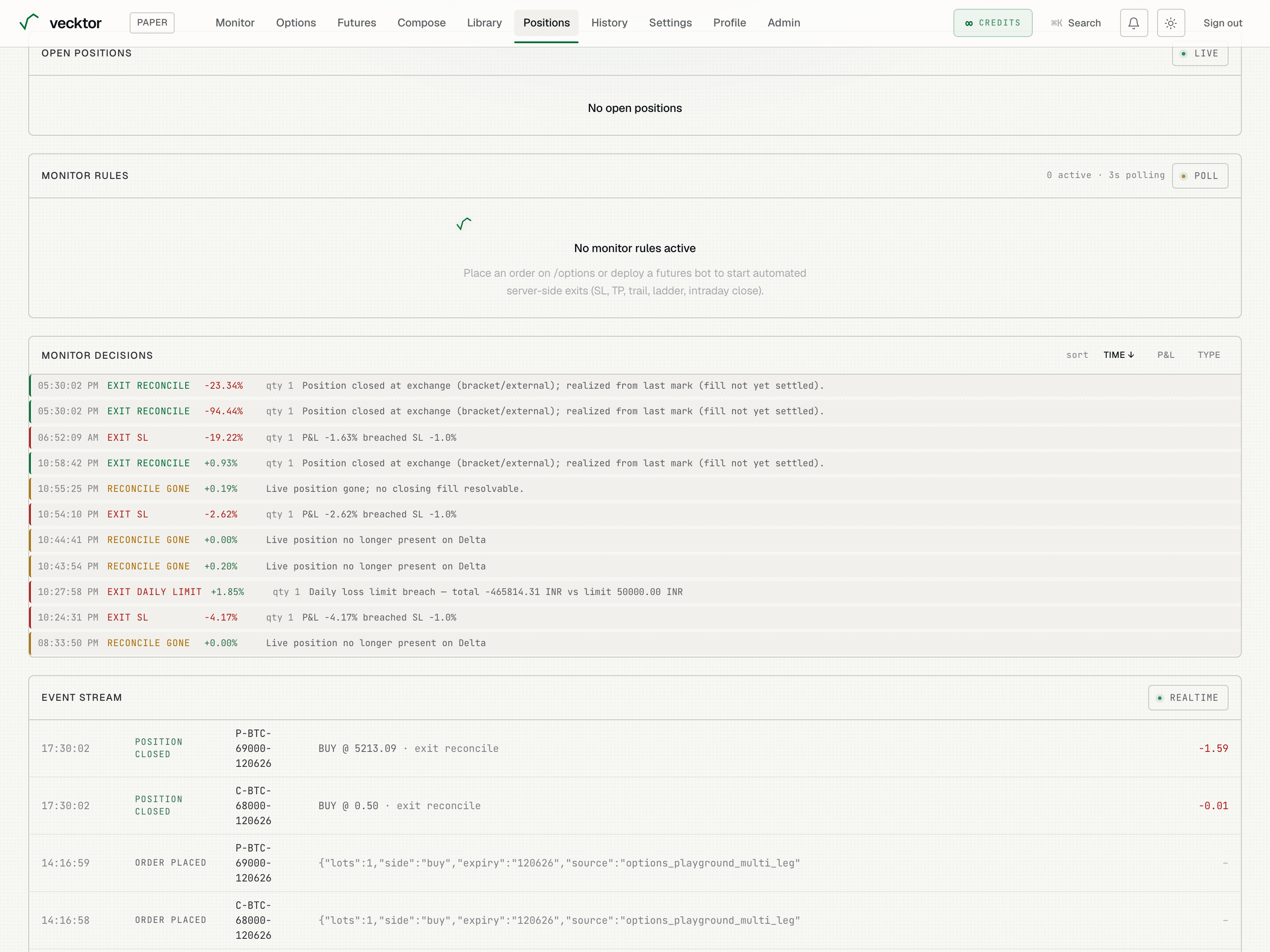
- Read the live P&L (a dash means it is still reconciling)
- Read the SL guard (the cap on the loss)
- Note the time exit (squares off by this IST time)
- Click stop watching to drop the guards (the position stays OPEN)
Stop watching a position
Each monitor rule has a stop watching button. It removes the automated guards from one position.
- Find the rule for the position you no longer want guarded automatically.
- Click stop watching on that rule.
- Read the confirm: Position stays open on Delta; only the automated guards stop. Use the panic Close all to flatten.
- Confirm to cancel the rule.
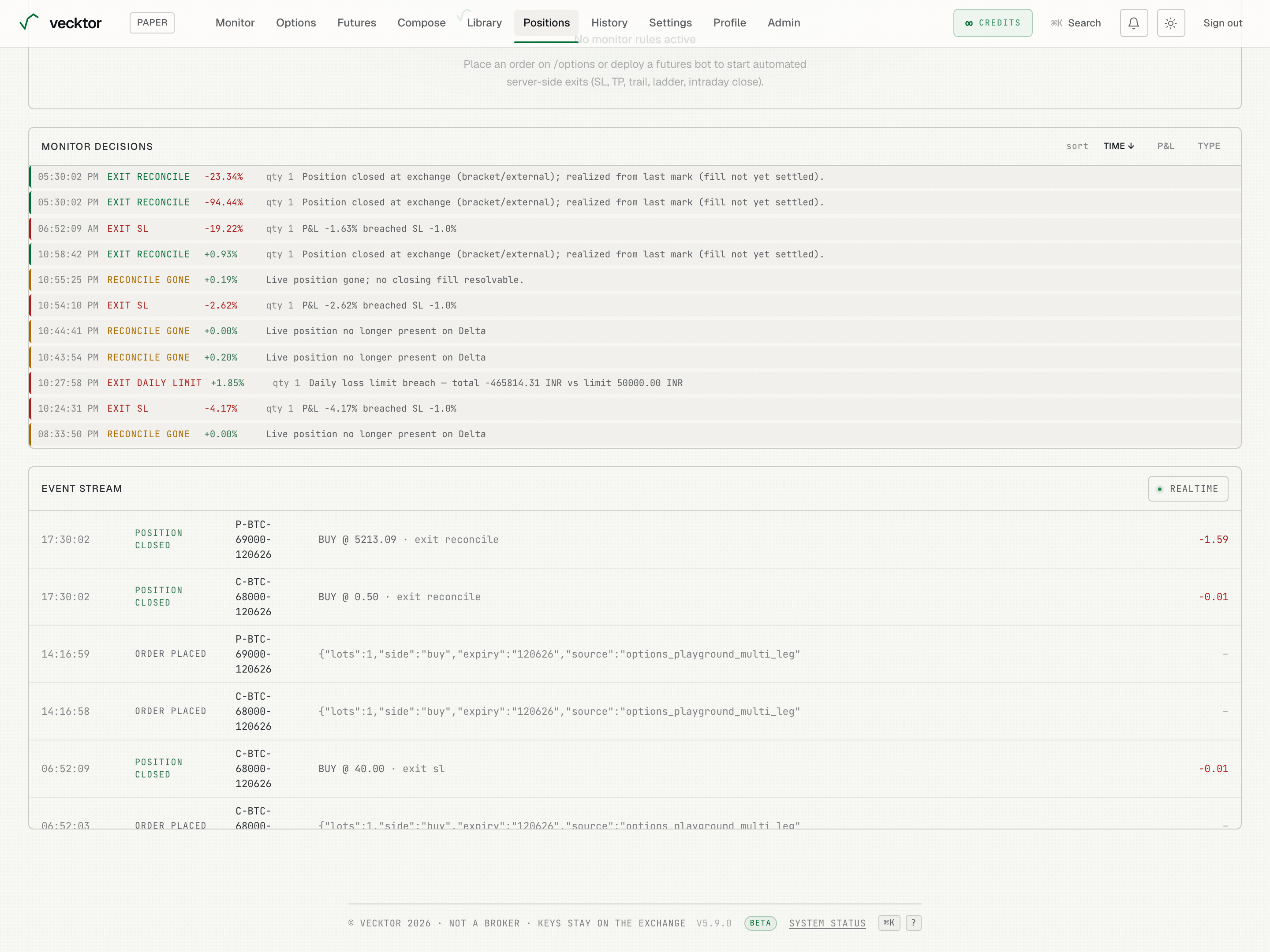
Read the monitor decisions log
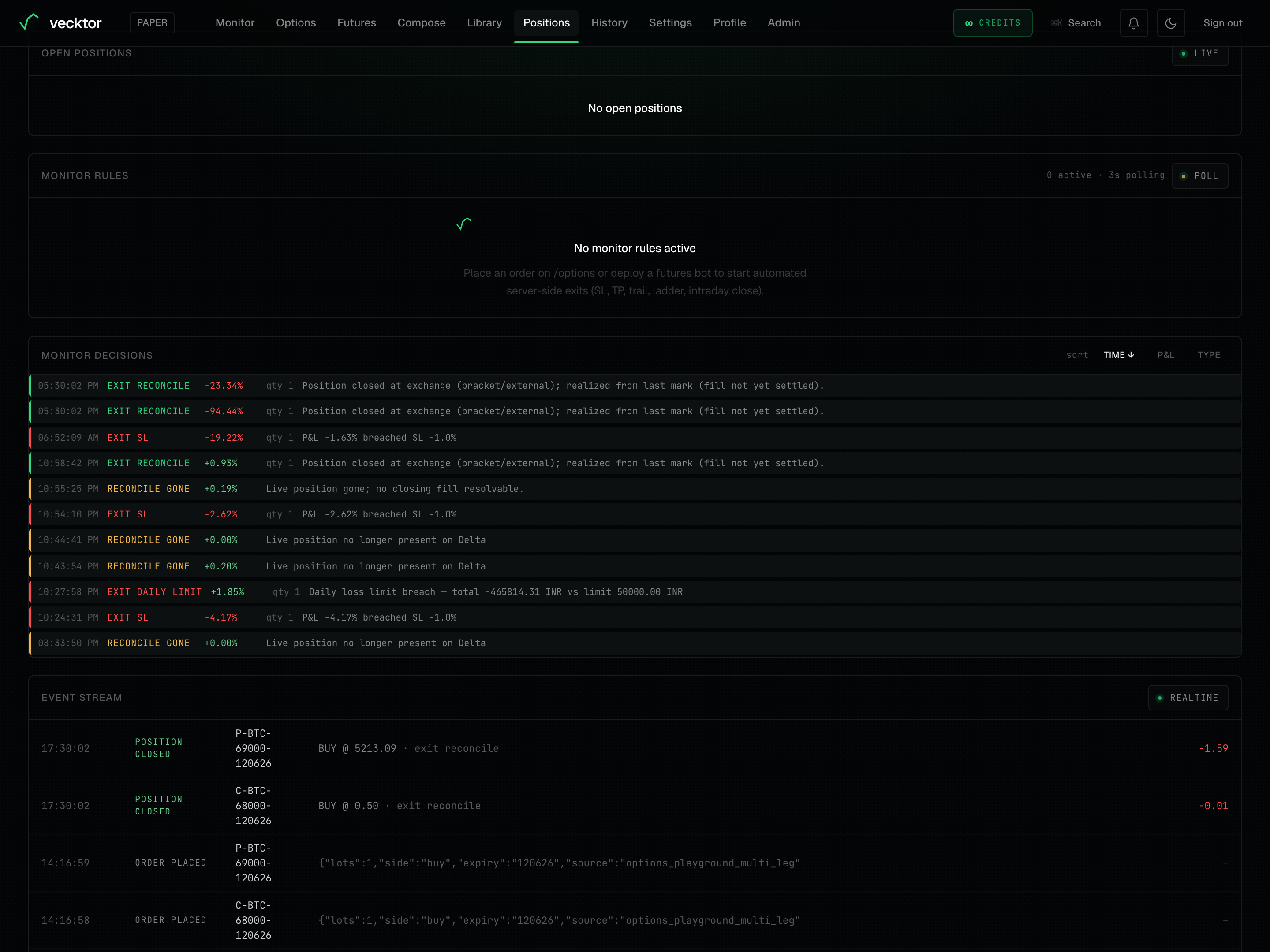
Monitor decisions is an audit log of every action the guards take: stop-loss exits, take-profit exits, partial fills, trailing updates, reconciles, and daily-limit closes.
- Find the Monitor decisions section below the rules.
- Read each line: the time, the decision type, the P&L percent at that moment, any quantity closed, and a short note.
- Click sort by time, P&L, or type to reorder the log. Click the same header again to flip the direction.
- Watch fresh decisions slide in at the top as they happen.
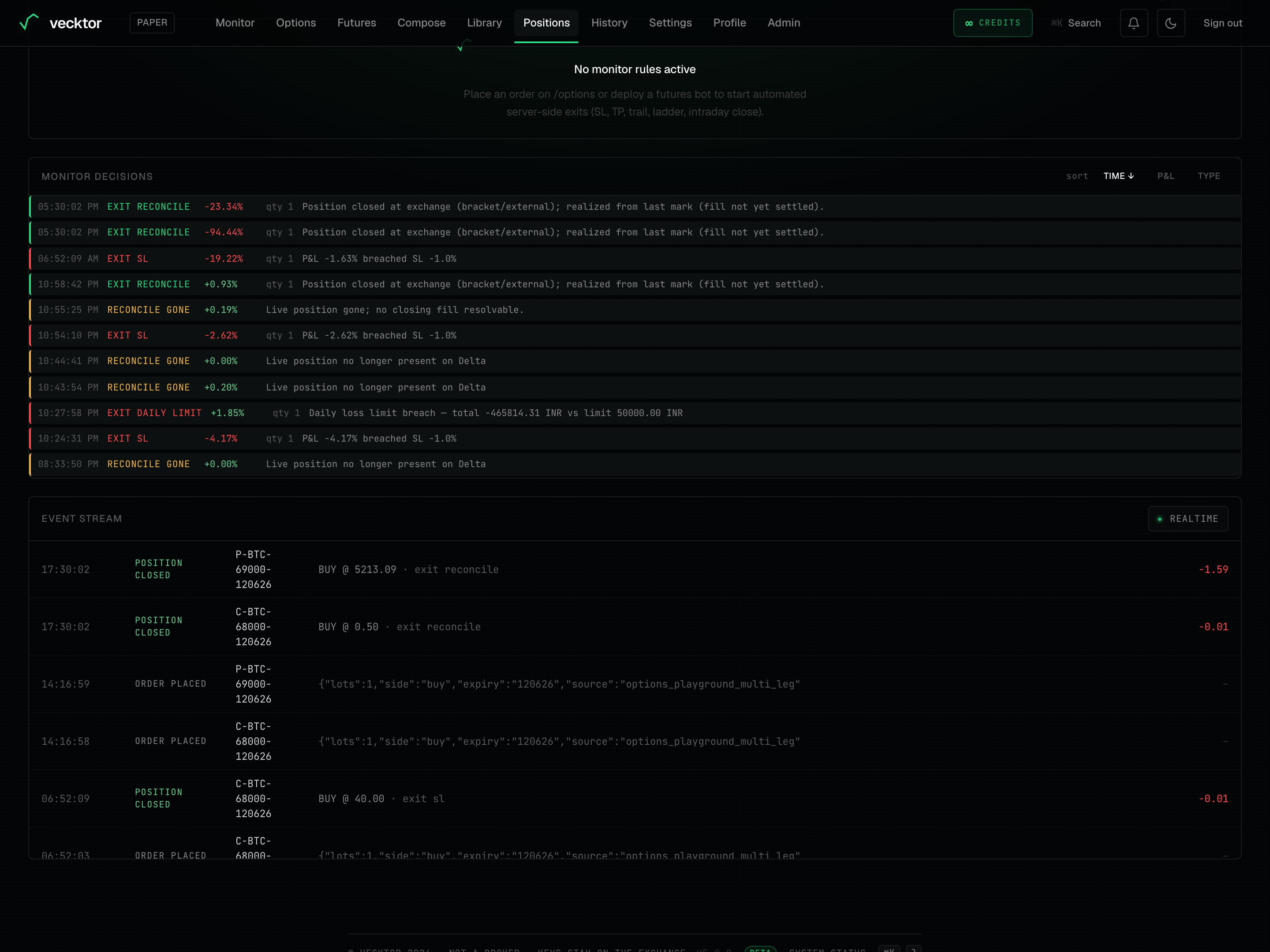 1Audit log of guard actions2Sort by time, P&L, or type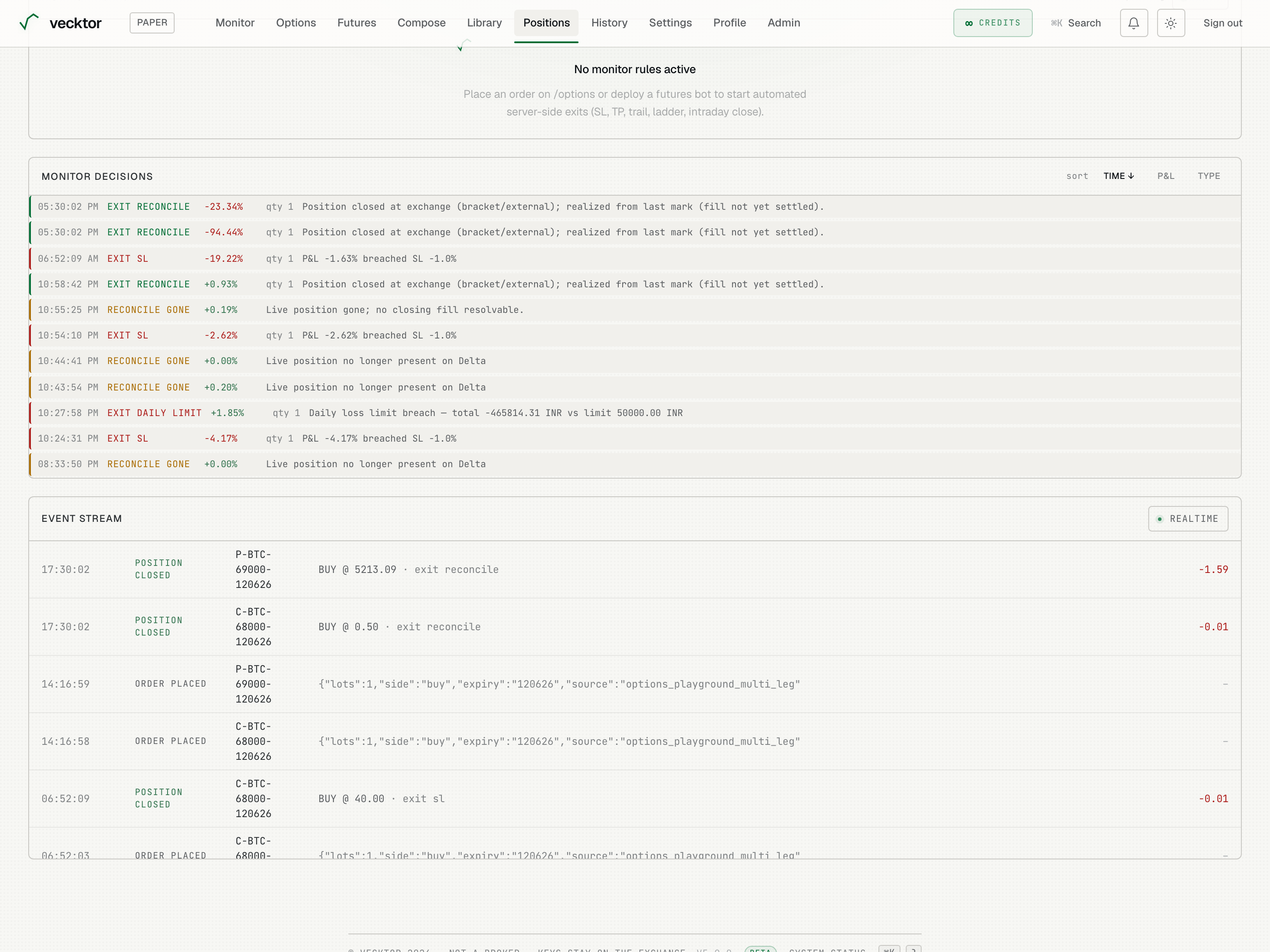
Read the event stream
The event stream at the bottom is the raw feed of everything across your fleet: signals, fills, position opens and closes, kill-switches, and heartbeats.
- Read each row: the time, the event type, the symbol, a short detail, and any P&L.
- Watch the newest event flash briefly as it arrives.
- Click a bot card above to filter this feed to just that bot. The header changes to Events · <bot name>.
- Click Show all to clear the filter and see the whole fleet again.
- Check the REALTIME or POLLED tag in the header to know whether updates are pushed live or pulled on a timer.
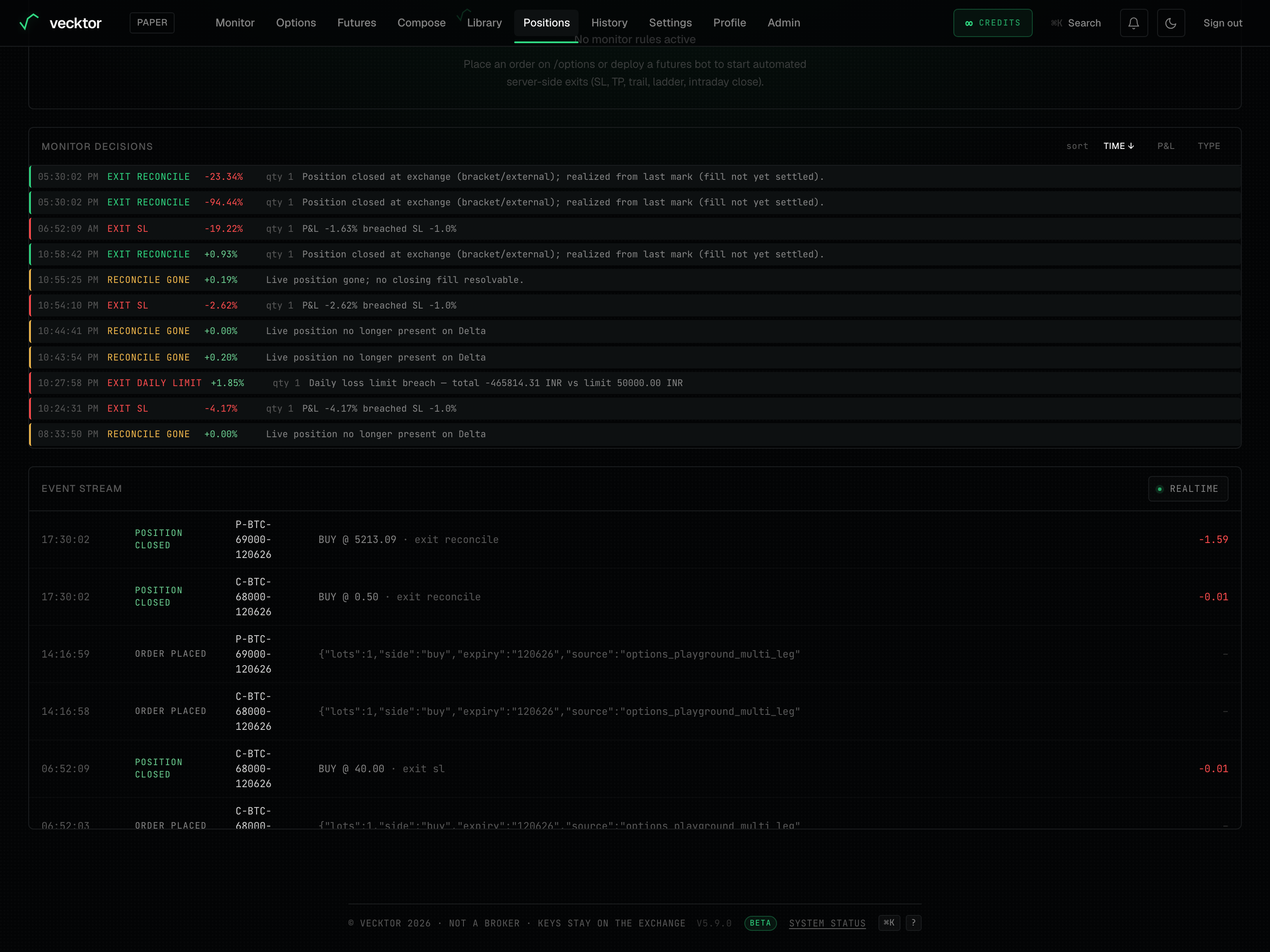 1Raw feed across the fleet2Pushed live or polled