Library and history
The library is where your saved strategies live so you can re-run them in one click. History is the record next to it: every closed trade and every backtest you have run, kept so you can read them back, export them, and compare them. This guide covers both.
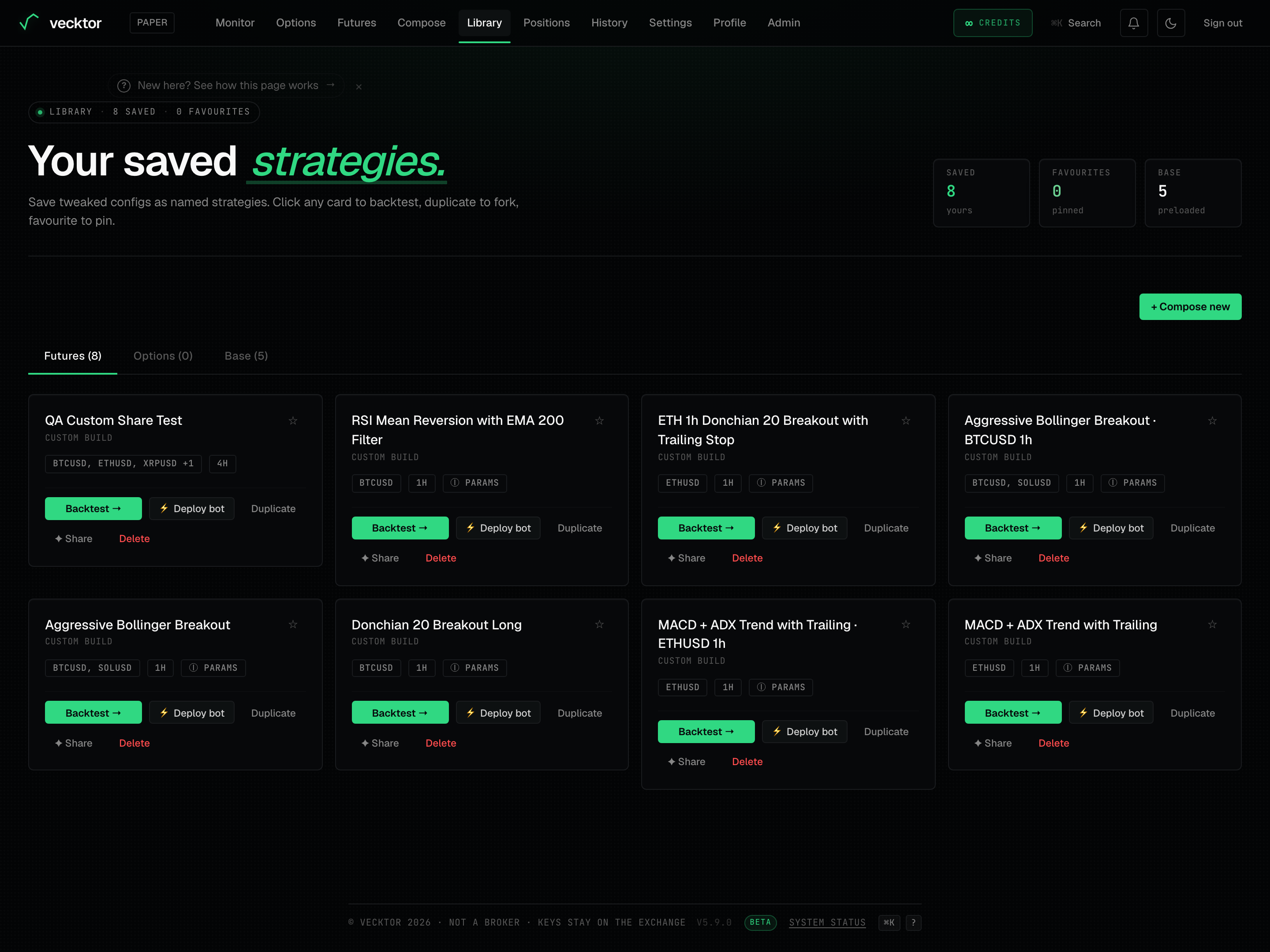
Read the library header and stats
The top of the library tells you which set you are looking at and how much you have saved.
- Read the title. It says Your saved on the Futures tab, Your options on the Options tab, and Base on the Base tab.
- Read the eyebrow line for your counts: LIBRARY, then n SAVED and n FAVOURITES.
- Glance at the rail on the right for the same numbers (Saved, Favourites, Base) at a glance.
- Look for the Forked to your library banner if you arrived from a shared link. It reads Forked to your library. It's in "Your saved" below.
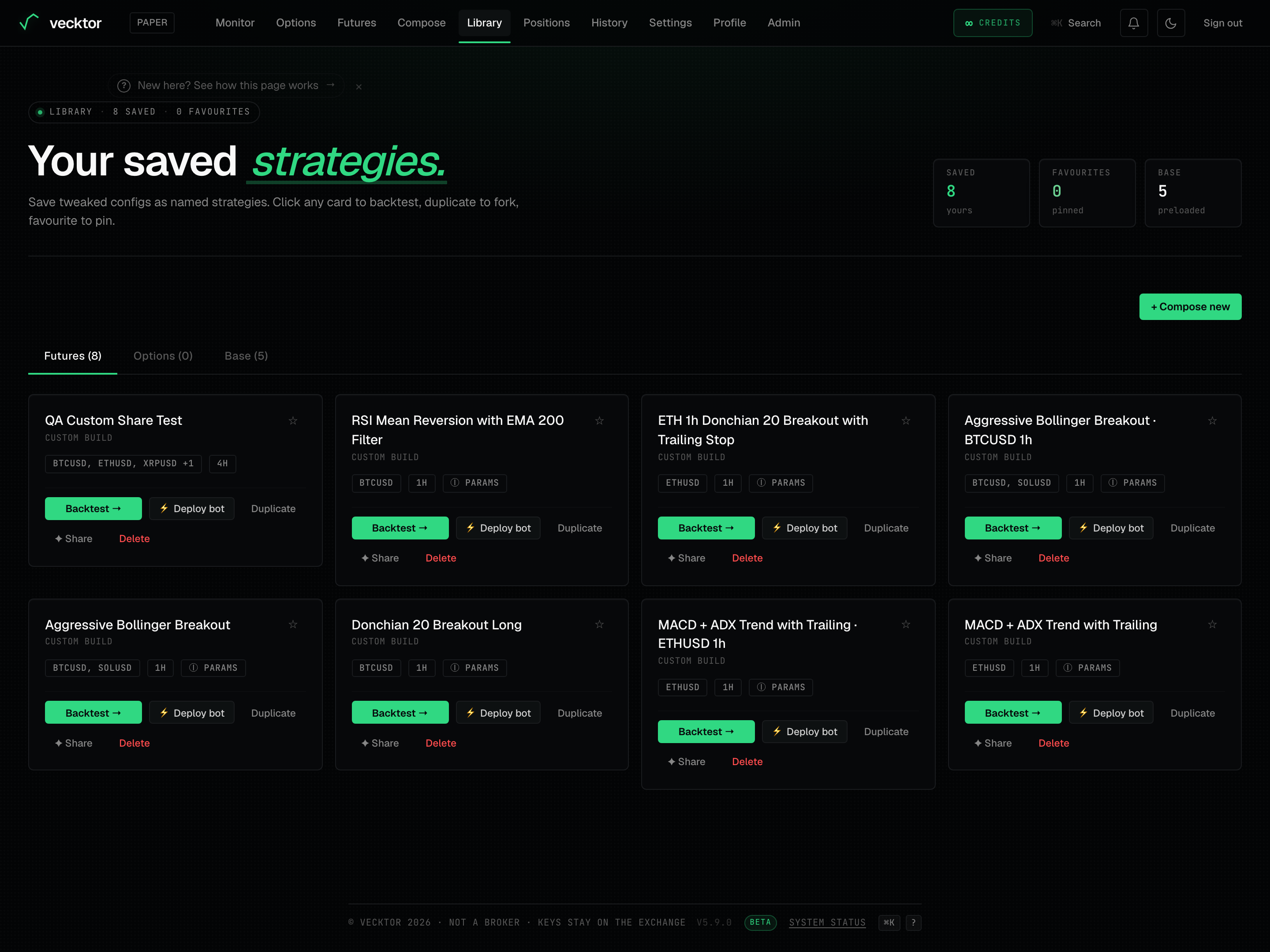 1Library header (SAVED / FAVOURITES counts)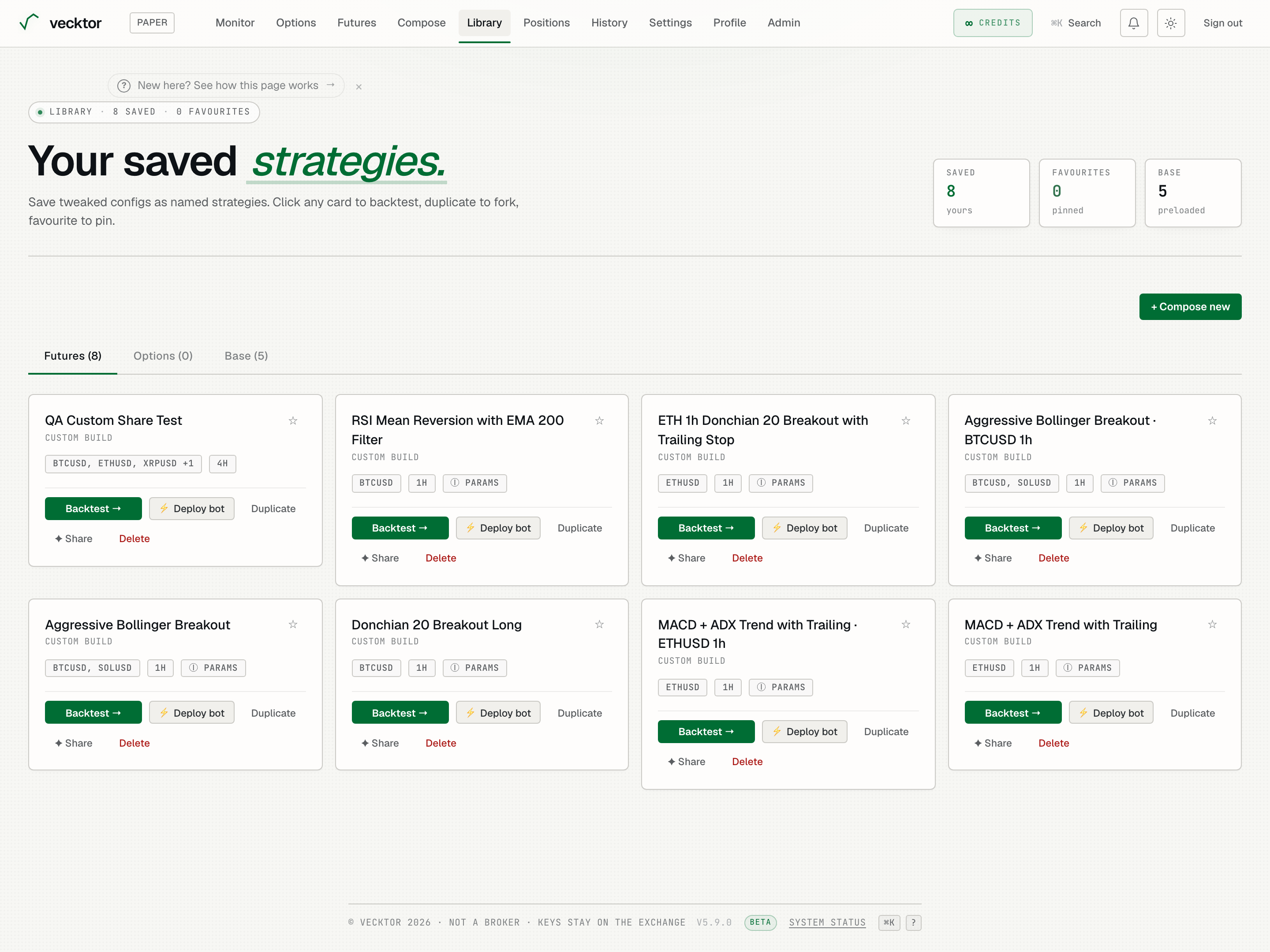
Switch between Futures, Options and Base
Three tabs split your saved strategies by type, plus the starter set everyone gets.
- Click Futures to see the configs you saved from a Compose run or a tweaked backtest. The count in brackets is how many you have.
- Click Options to see multi-leg options strategies (several option positions held together) you saved from the Run/Schedule dialog on the Options page.
- Click Base to see the preloaded starter strategies every user gets.
- Click + Compose new at any time to build a fresh strategy in plain language.
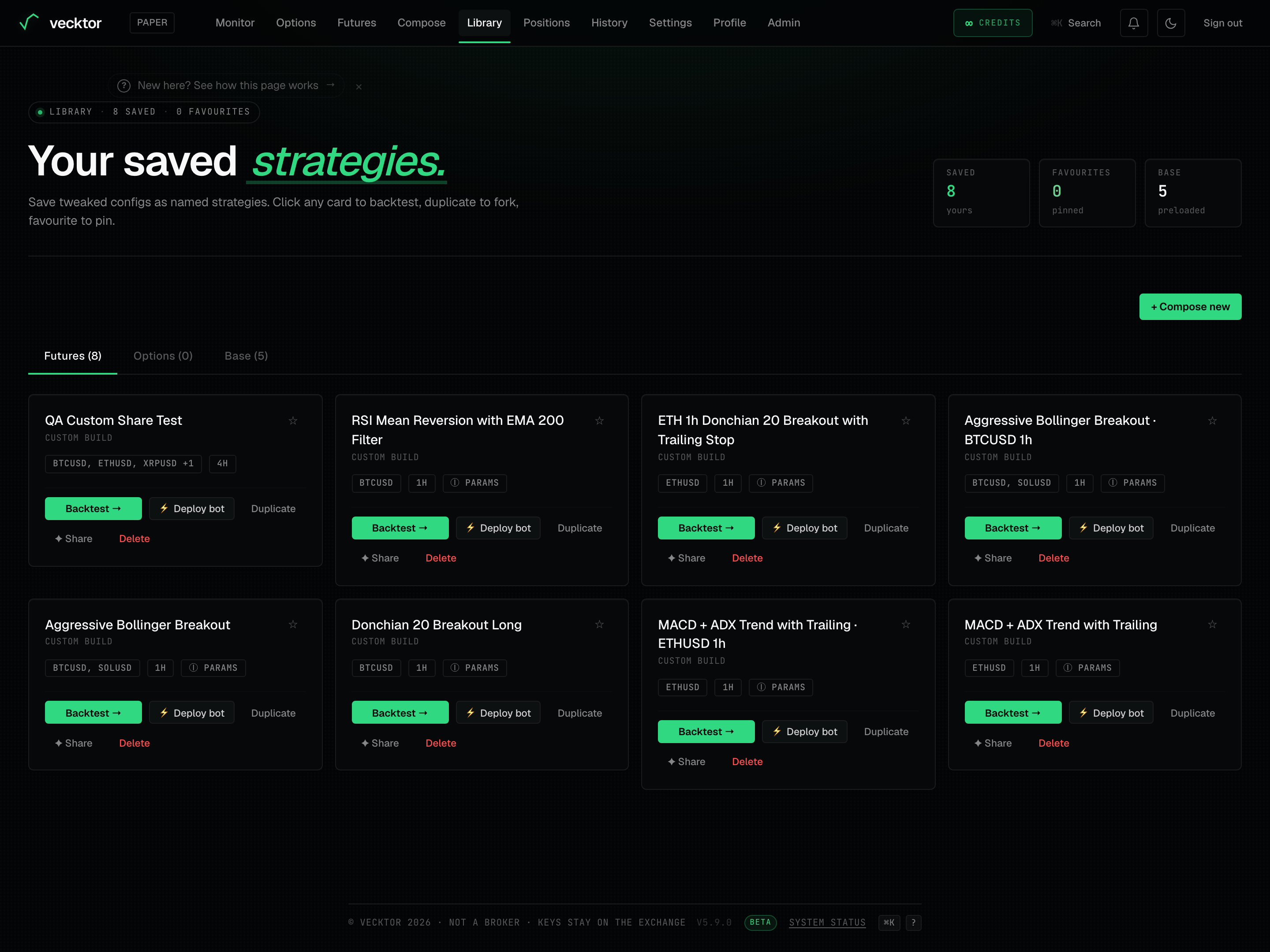 1Futures / Options / Base tabs2Compose a new strategy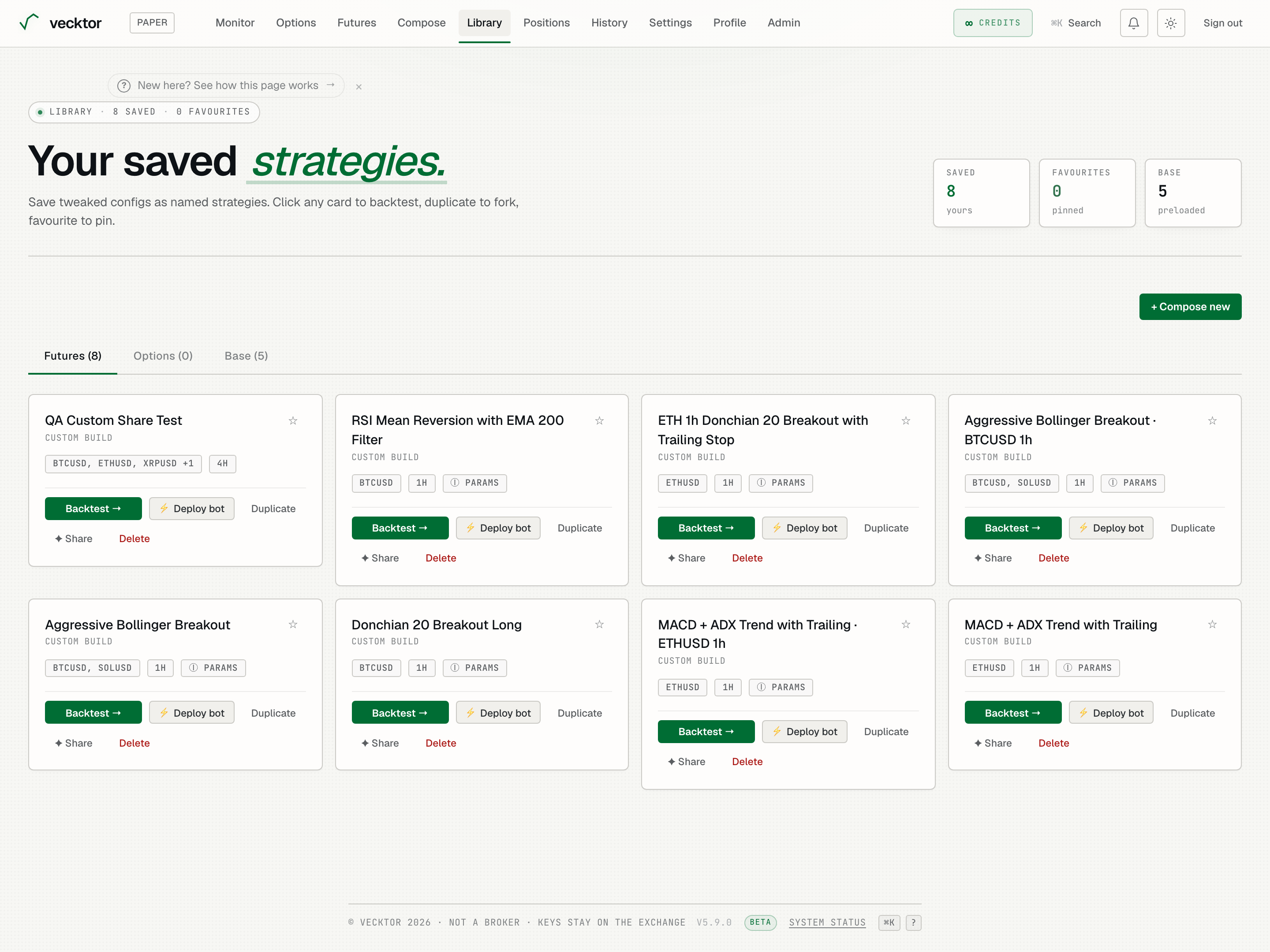
- Open Futures (configs you saved)
- Open Options (saved multi-leg strategies)
- Open Base (the starter set)
- Click Compose new (build one in plain language (uses credits))
Use a saved strategy card
Each card in Your saved is one strategy with its own actions. The card body shows the name, the strategy family, your symbols, and the timeframe.
- Click anywhere on the card body to open it in the terminal with its saved config loaded.
- Click Backtest → to do the same thing from the button.
- Click the ☆ star in the top corner to favourite (pin) the card. Favourites sort to the top.
- Click the name to rename it inline. Type the new name and confirm.
- Click Duplicate to fork a copy you can tweak without touching the original.
- Click ⚡ Deploy bot to run it as a live bot. It opens the deploy dialog so you set size and confirm before any order is placed.
- Click ✦ Share to copy a public link. Re-clicking returns the same link, it never makes duplicates.
- Click Delete to remove it. You will be asked to confirm because this cannot be undone.
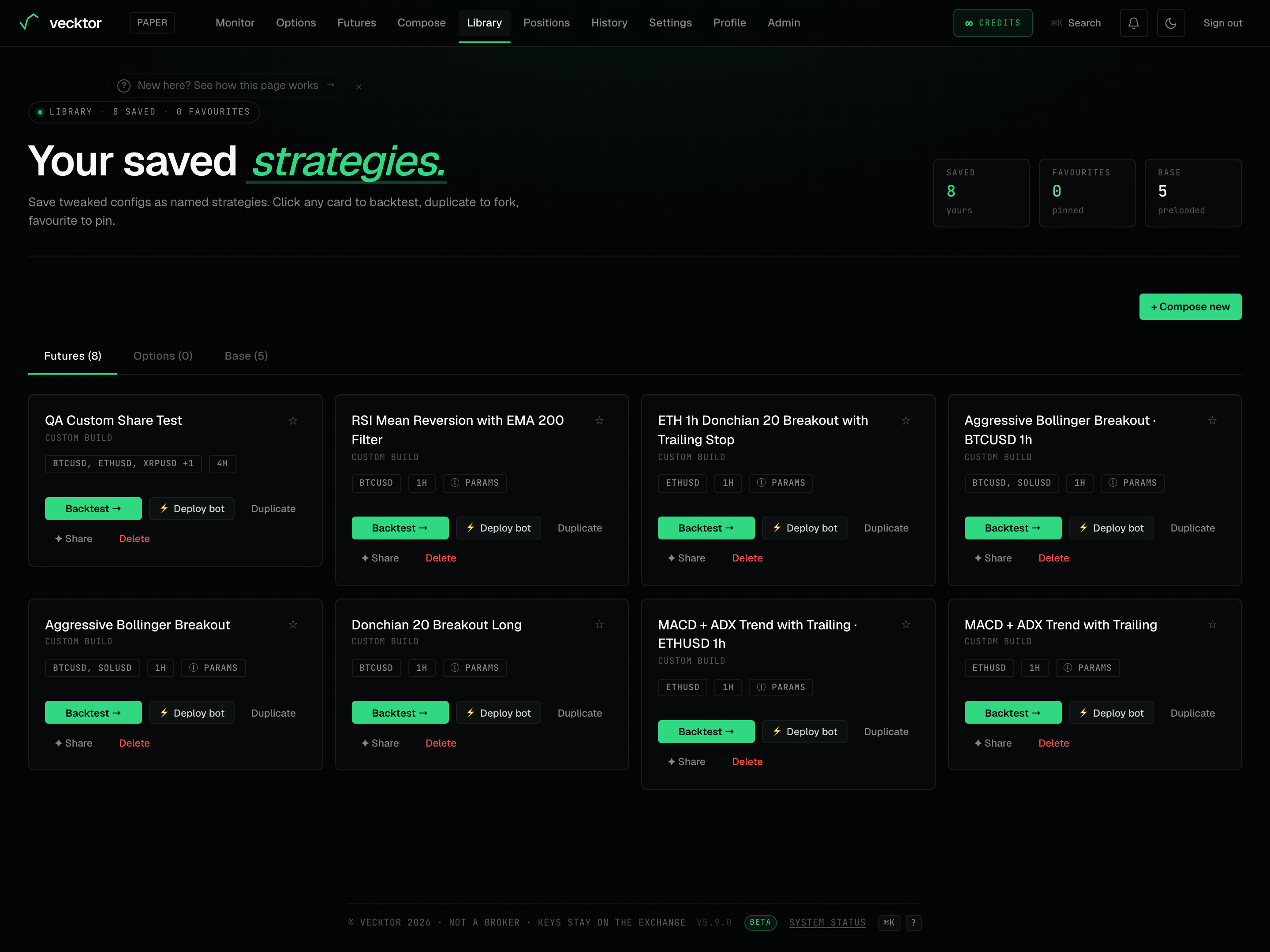 1Open the card in the terminal2Deploy as a bot (start small)3Copy a public share link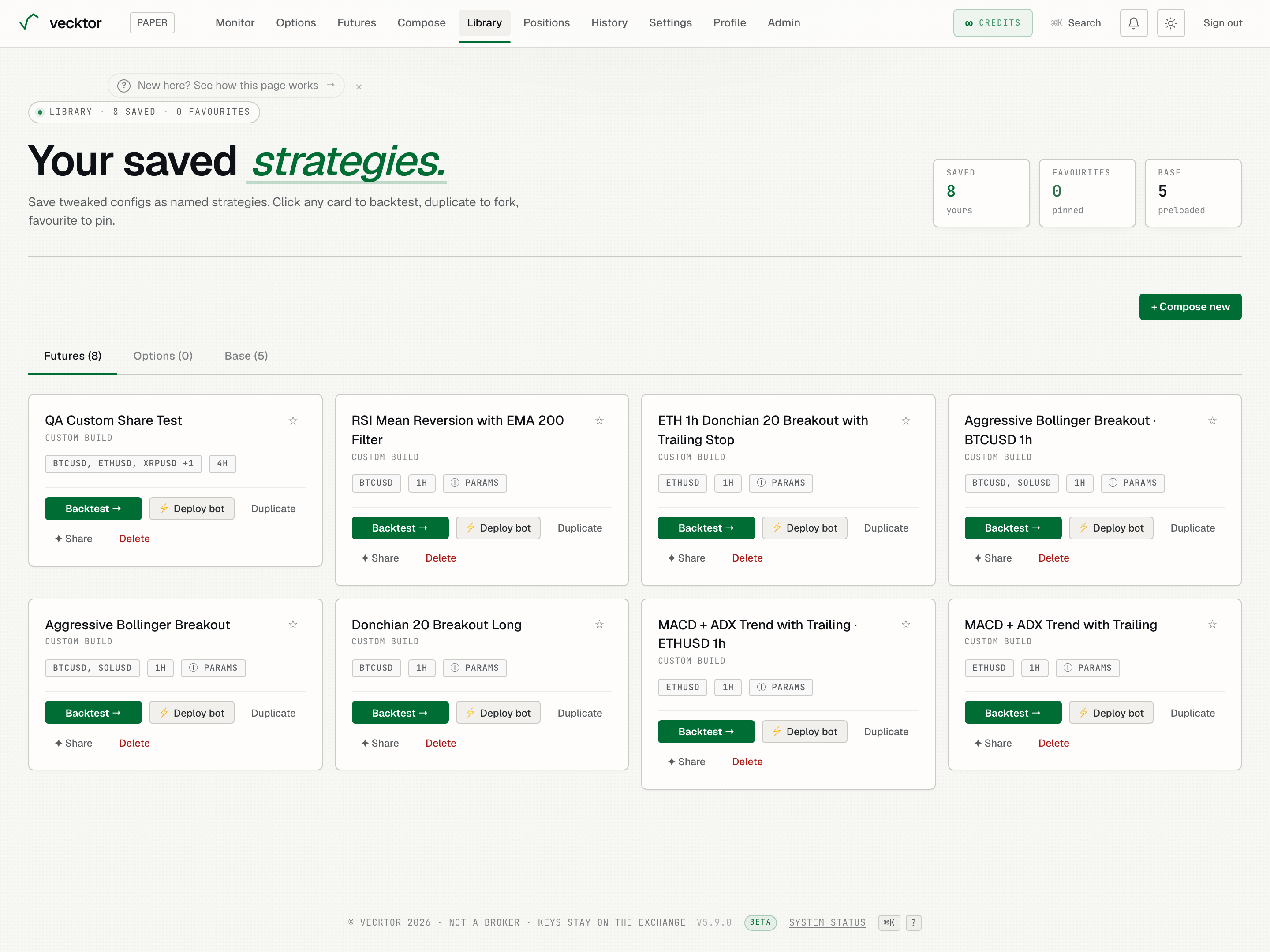
- Click Backtest → (opens with the saved config)
- Click the ☆ star to pin (favourites sort to the top)
- Duplicate to fork (tweak a copy safely)
- Click ⚡ Deploy bot (set size and confirm before it goes live)
- Click ✦ Share for a public link (same link each time, no duplicates)
- Click Delete (permanent, no undo)
Read the chips on a card
Small chips under the description tell you how the strategy is set up and how it last performed.
- Read the symbol chip for the markets the strategy trades (for example BTCUSD).
- Read the timeframe chip for the candle size it runs on (for example 1h).
- Hover the ⓘ params chip to see the exact parameter values without opening the card.
- Read the return and sharpe line at the bottom for the last backtest result, if the card has one. sharpe is reward per unit of risk, higher is steadier.
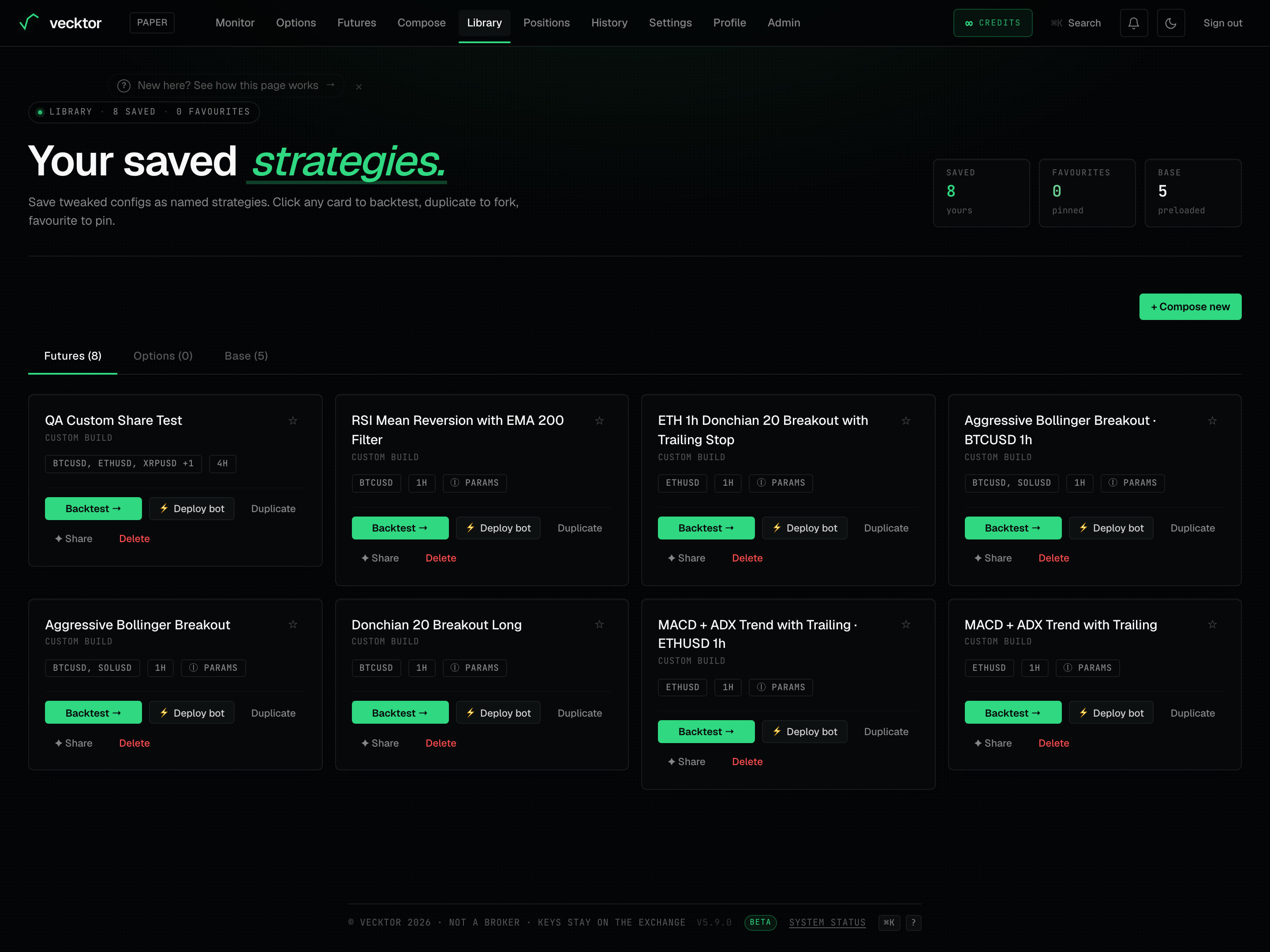 1Hover for exact params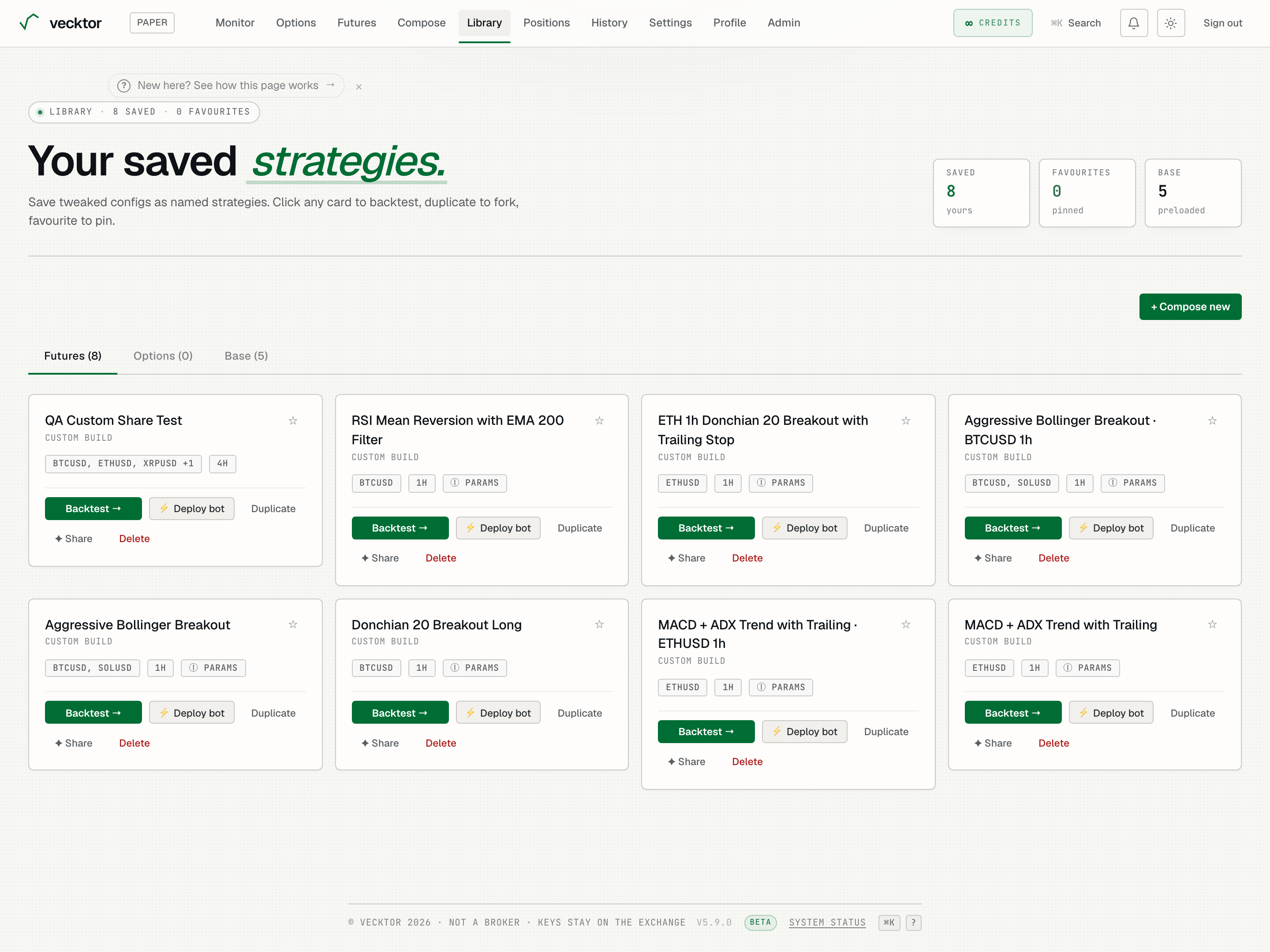
Reorder and reset your cards
You can drag cards into the order you want them in. The order is remembered on this device.
- Grab a card by its grip handle (the ⋮⋮ marker) and drag it to a new spot.
- Drop it to set the order. The new order is saved for next time.
- Click ↺ Reset order to drop your custom order and return to favourites first, then most recent. It only appears once you have set a custom order.
 1Drag grip to reorder cards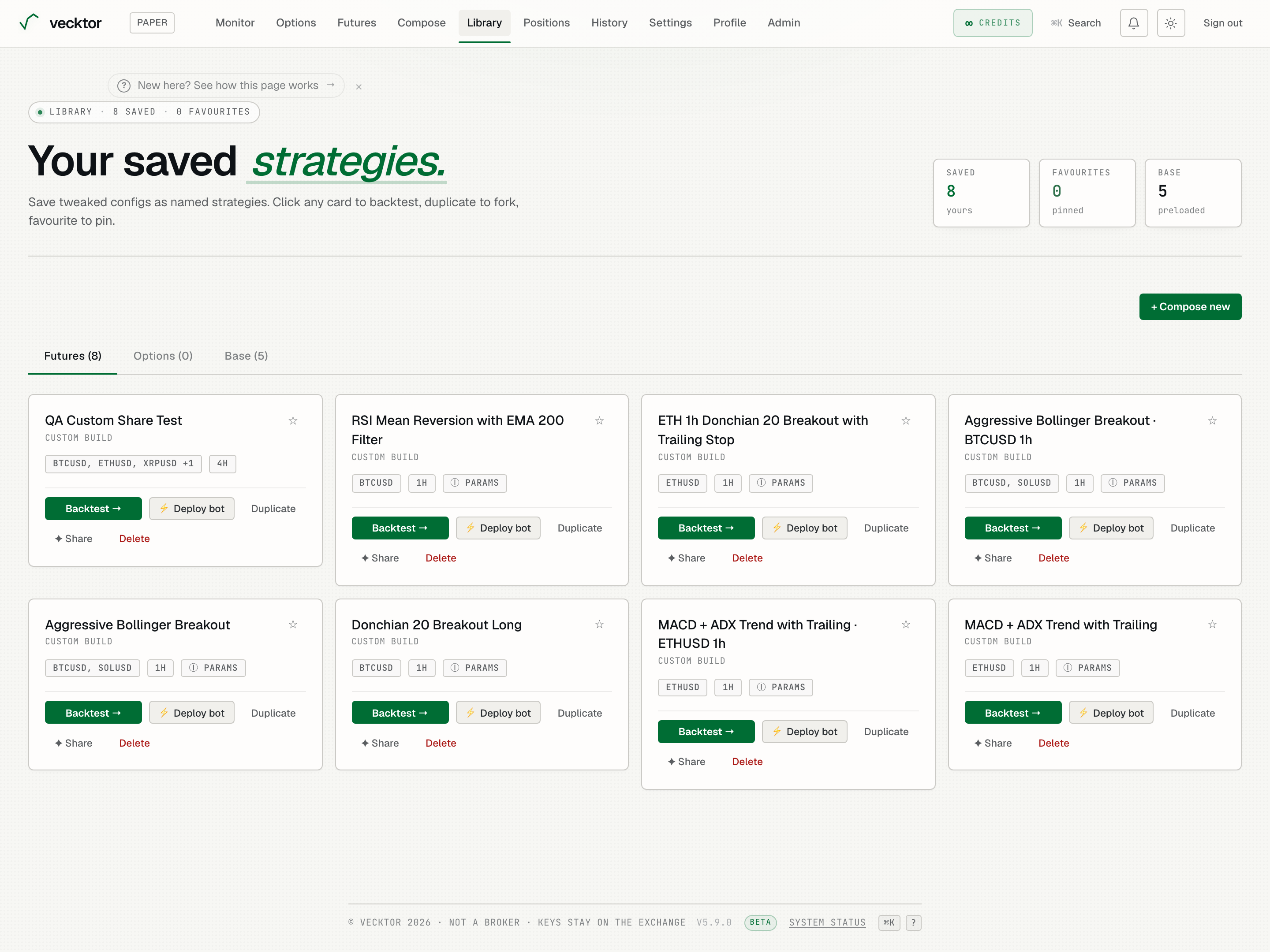
Empty state, base cards and options cards
When you have nothing saved yet, and on the Base and Options tabs, the cards look a little different.
- On an empty Futures tab, read the prompt (Your library is empty) and click Compose your first → to build one.
- On Base, click a starter card to backtest it with its defaults, then save a tweaked copy into your library.
- On Options, read the OPTIONS header line (underlying, leg count, and the days to expiry like ~7d) and the leg summary below it (for example SELL CE · BUY CE, where CE is a call and PE is a put).
- Click Open in Options → to load a saved options strategy back into the Options page, or Delete to remove it.
Open history: Trades and Backtests
History is a separate page with two tabs. Trades is every closed position. Backtests is every run you have done.
- Open History from the navigation.
- Click Trades for your closed positions across every bot.
- Click Backtests for every backtest you have run.
- The Trades list shows your live fills on Delta India.
 1Trades tab2Backtests tab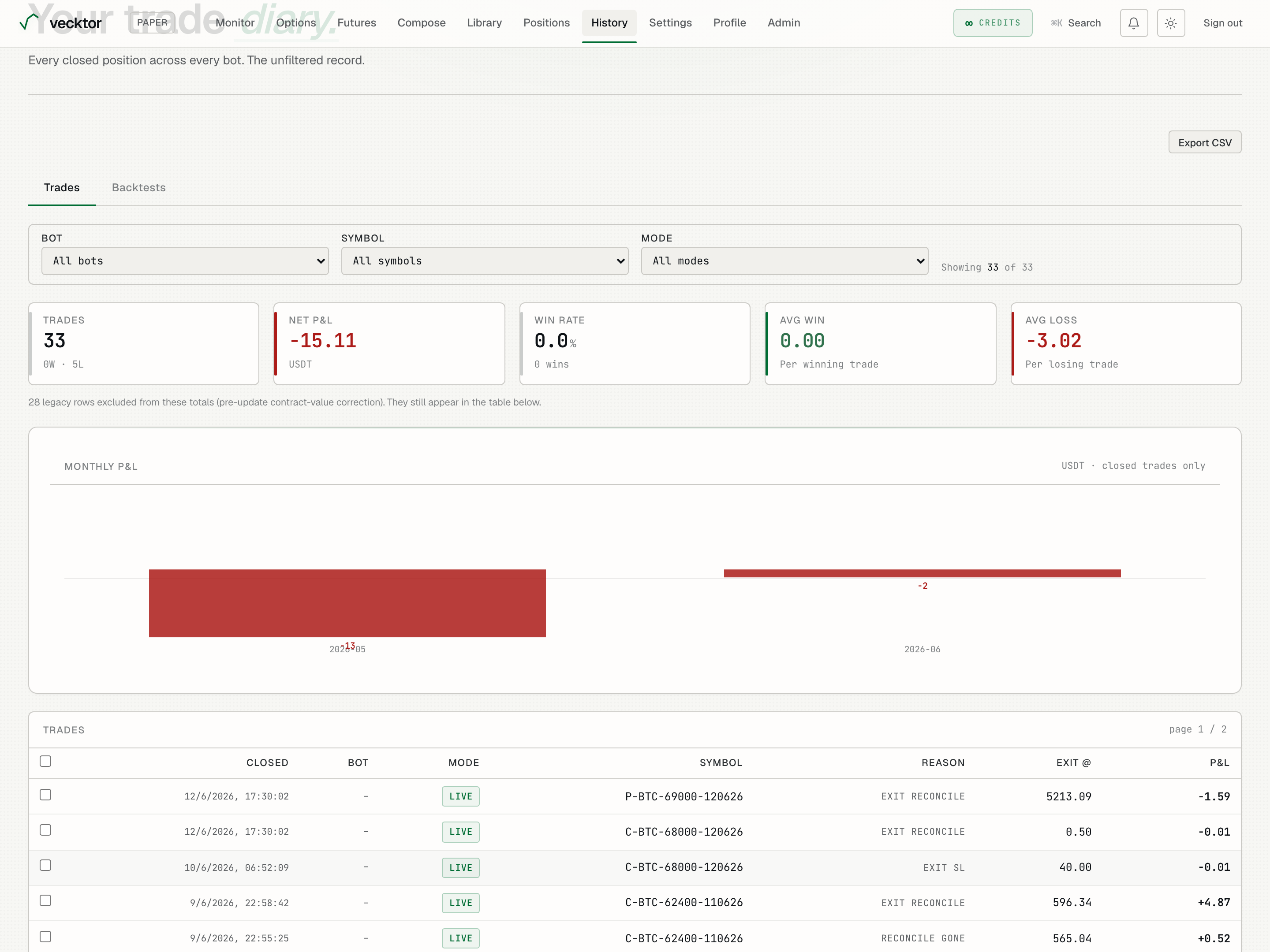
Filter, read and export trades
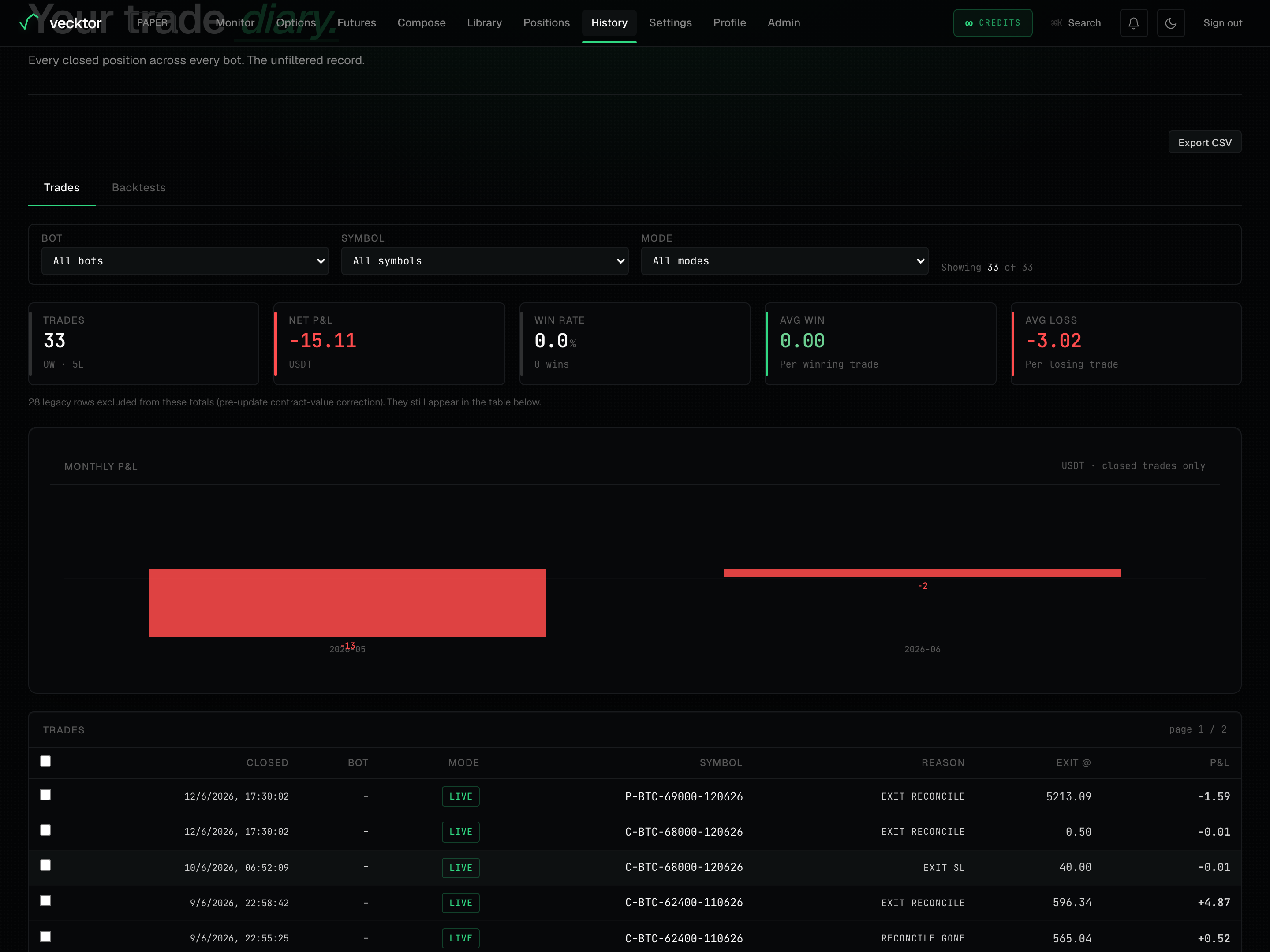
The Trades tab has filters, summary metrics, a monthly chart, and a table you can select rows from.
- Set the Bot, Symbol and Mode filters to narrow the list. The Showing line tells you how many of the total match (Showing n of m).
- Read the summary row: Trades, Net P&L, Win rate, Avg win and Avg loss.
- Read the Monthly P&L bars to see which months made or lost money. Green is up, red is down.
- Scan the table columns: Closed, Bot, Mode, Symbol, Reason, Exit @ and P&L. Click a row's Bot name to open that bot.
- Tick the checkboxes to select rows, then use the bar that appears to click ↓ Export CSV for just those rows.
- Click Export CSV at the top to export every filtered trade instead.
- Use ← Prev and Next → to page through 25 trades at a time.
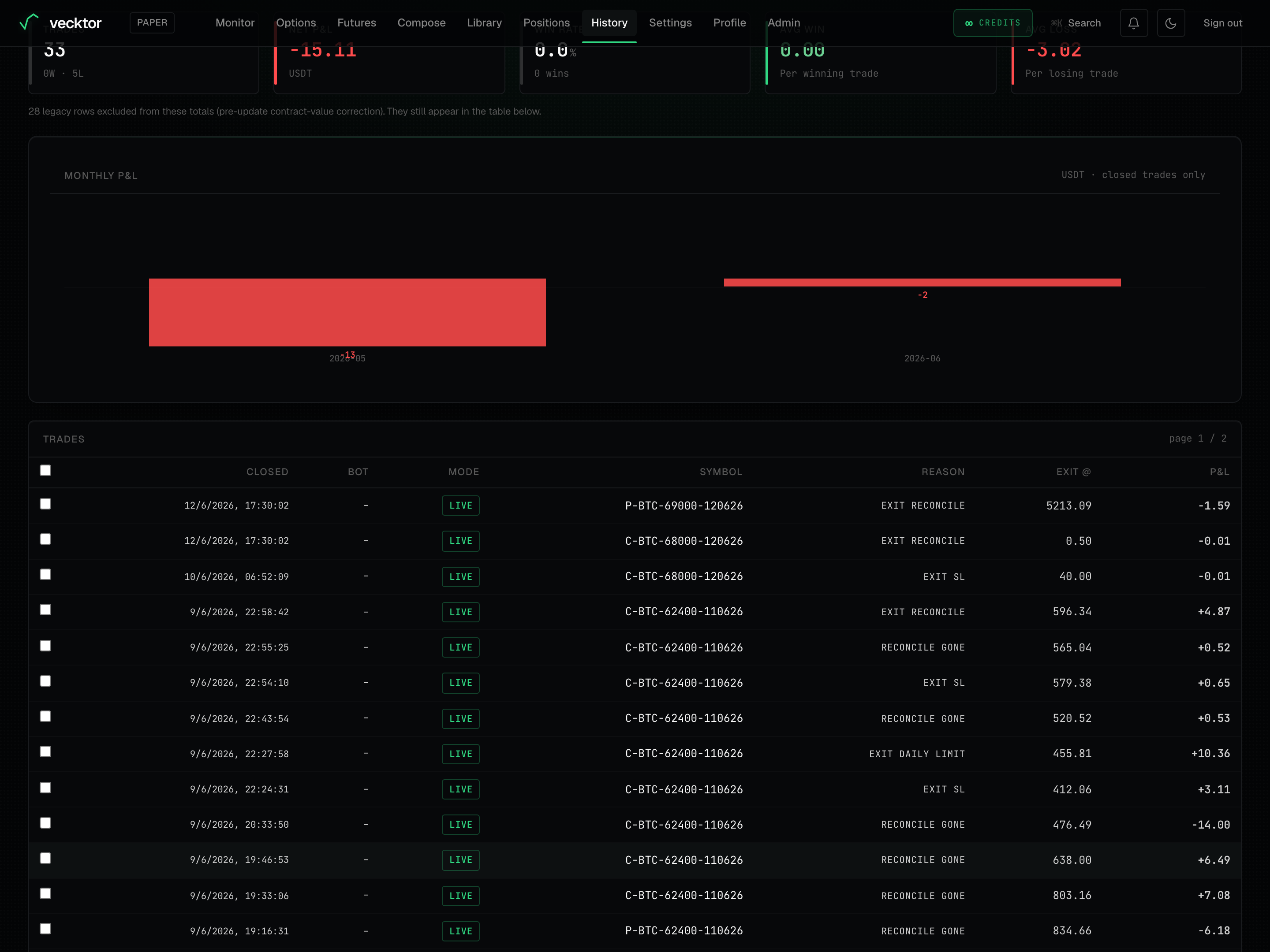 2Monthly P&L bars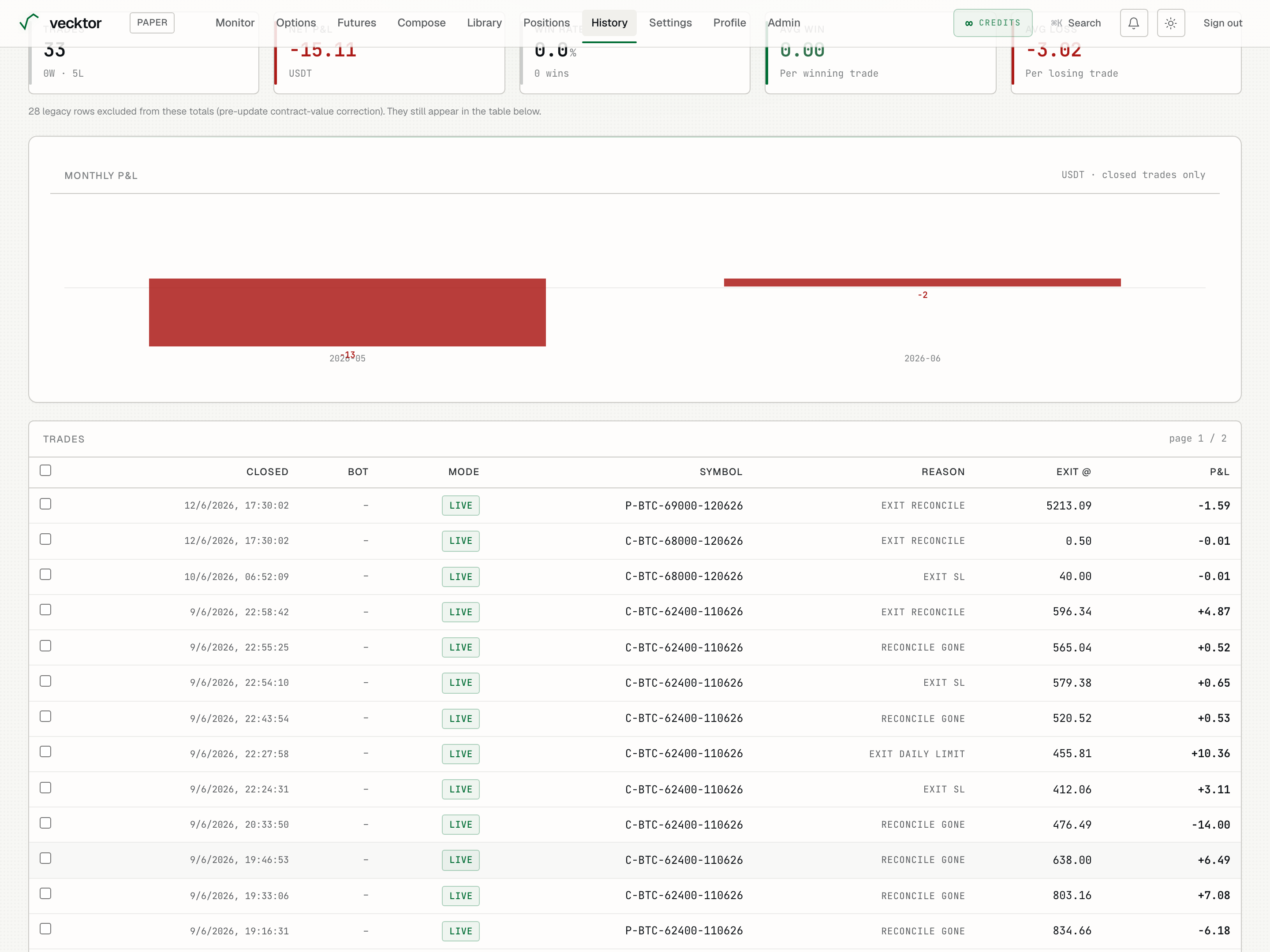
- Read Net P&L (net of fees and slippage)
- Scan the Monthly P&L bars (which months made money)
- Click the row's Bot name (opens that bot)
- Click Export CSV (all filtered, or ↓ Export CSV for just selected rows)
Filter and read your backtest runs
The Backtests tab splits runs into All, Futures and Options, with a strategy filter and a runs table.
- Click All, Futures or Options to choose which runs to list. The number next to each is the count.
- Set the Strategy filter to a single strategy, or leave it on All strategies (it reads All futures or All options inside those tabs).
- Read the summary: Total runs, Profitable, and Avg return across the filtered runs.
- Scan the runs table columns: Run (the label, defaulting to a BT_ id), When (in IST), Strategy, Symbols / TF, Trades, Return, Sharpe and Max DD (max drawdown, the worst peak-to-trough drop).
- Click a run's Run label to rename it inline so you can find it later.
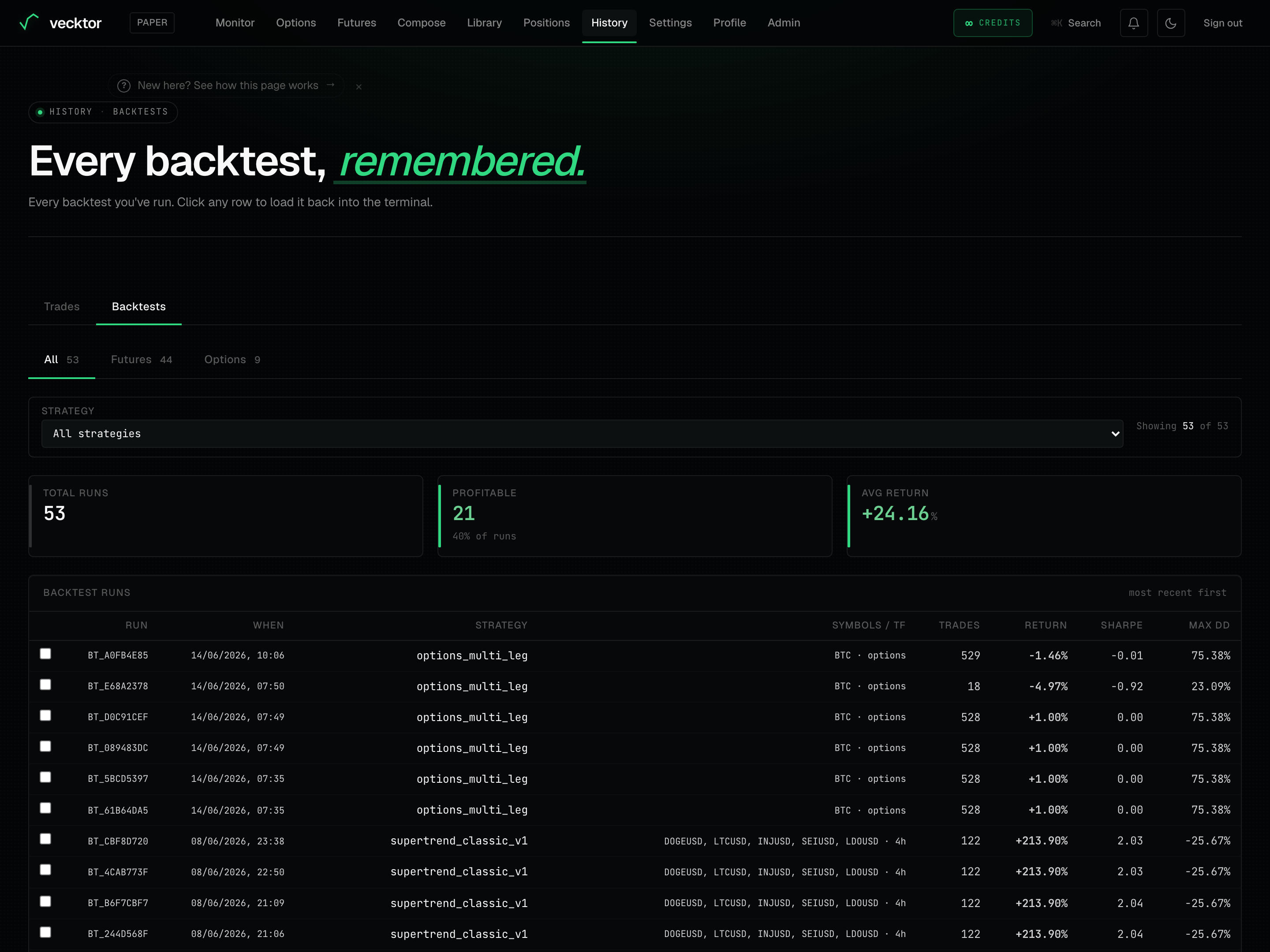 1All / Futures / Options split2Strategy filter3Return, Sharpe, Max DD per run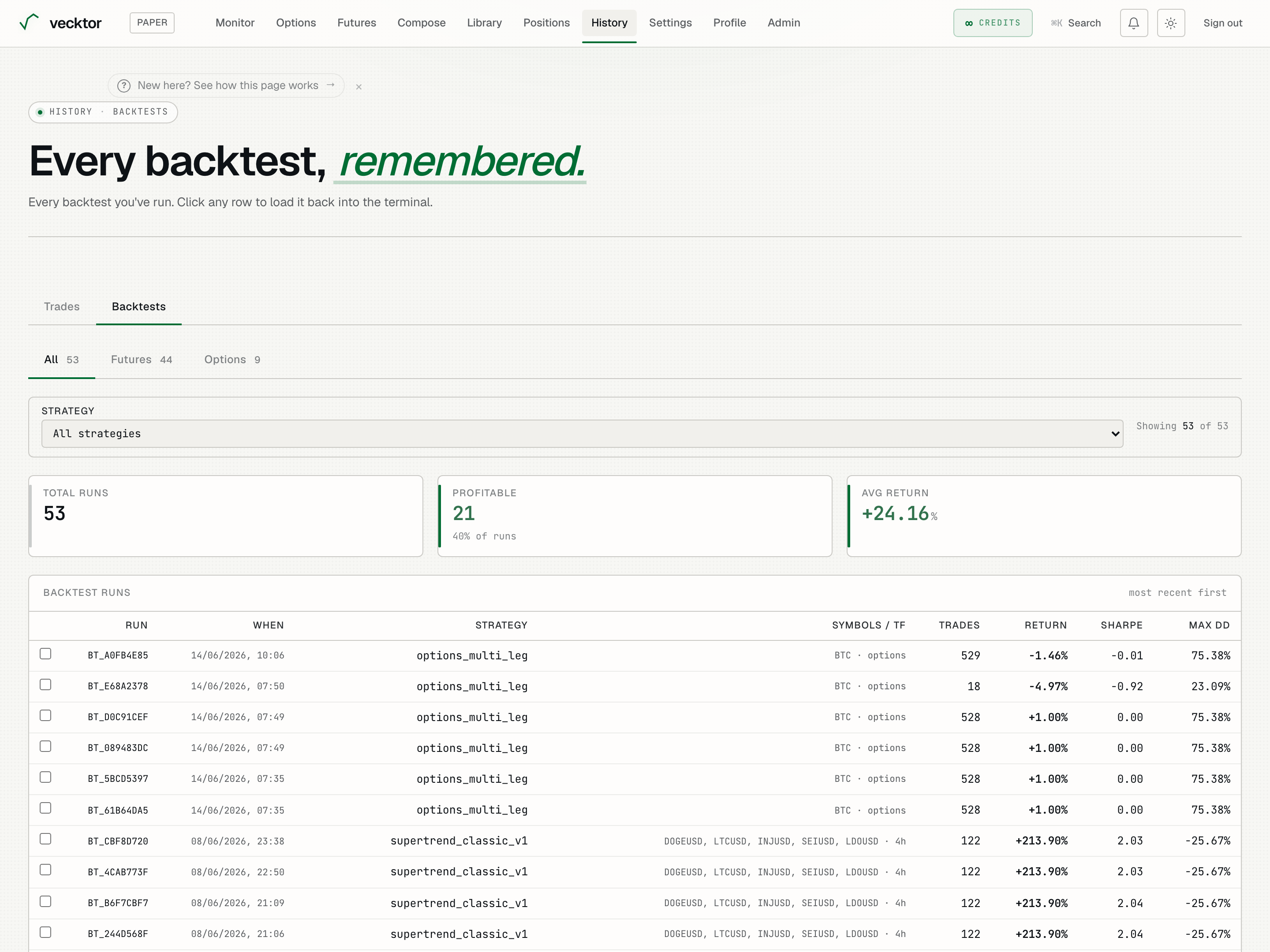
- Pick All, Futures or Options (splits the runs by kind)
- Set the Strategy filter (resets when you switch kind)
- Read a Run row (Run, When, Strategy, Symbols / TF, Trades, Return, Sharpe, Max DD)
- Click the Run label to rename (find it later)
Load a past run and compare two
You can open any old run back in the terminal, or pick two and compare them side by side.
- Click a backtest row to load that run back into the terminal. Futures runs open in the Futures page, options runs open in the Options page.
- Tick the checkbox on exactly two runs. The bar shows n/2 backtests selected.
- Click ⇄ Compare in the bar that appears. It opens the Compare backtests dialog.
- Read the side-by-side table. A ✓ marks the winning side per metric (Total return, CAGR, Sharpe, Sortino, Max drawdown, Win rate, Total trades, Profit factor).
- Read the Equity overlay below it. Both curves are rebased to start = 100 so you compare the shape, not the size.
- Tick exactly two runs (no more, no fewer)
- Click ⇄ Compare (opens the Compare backtests dialog)
- Read each metric (a ✓ marks the winning side per metric)
- Read the Equity overlay (both rebased to start = 100 to compare shape)