Write a strategy in plain English
Compose lets you describe a strategy in plain English and turns your sentence into typed rules you can read, correct, backtest, and deploy. This guide covers the futures and options tabs, the Your strategy box, the Compile step, the One quick question card, the editable name and plain-English summary, the Not quite right? correction box, View the script, the Optimizer, and where each result opens next. Compose runs on credits (you get a free monthly grant in beta); the backtest, deploy, and monitoring it hands off to are free.
Pick Futures or Options first
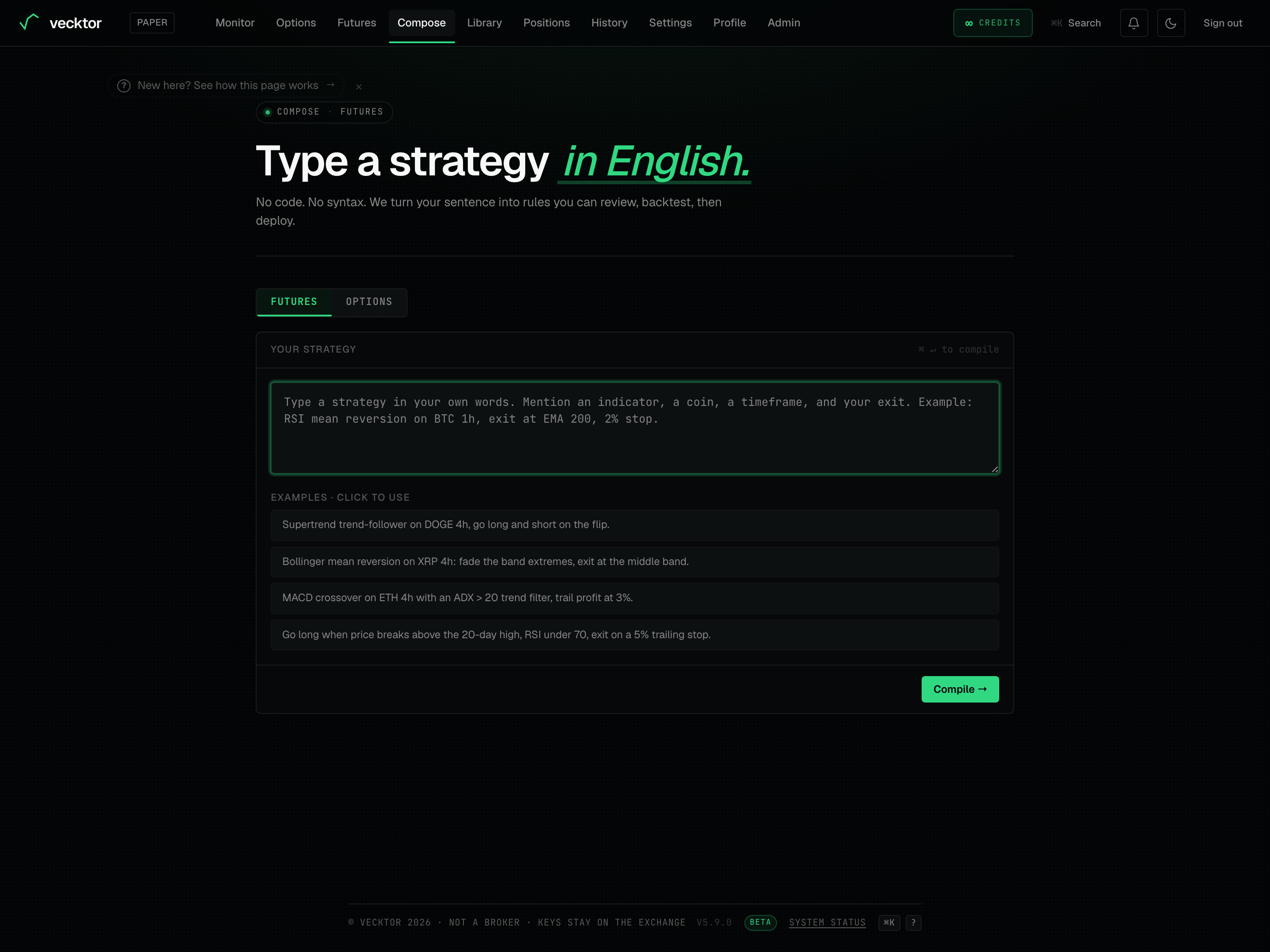
A toggle at the top sets which kind of strategy you are describing. Futures means a strategy on BTC or ETH perpetuals (a contract that never expires). Options means a multi-leg options play. The two compile differently, so pick the right one before you type.
- Read the eyebrow at the top: it shows COMPOSE then the current mode (FUTURES or OPTIONS).
- Click the futures tab for an indicator-based perpetuals strategy on BTC or ETH.
- Click the options tab for a strategy built from option legs (calls and puts).
- Notice the placeholder text and the Examples list below change to match the mode you picked.
 1FUTURES tab2OPTIONS tab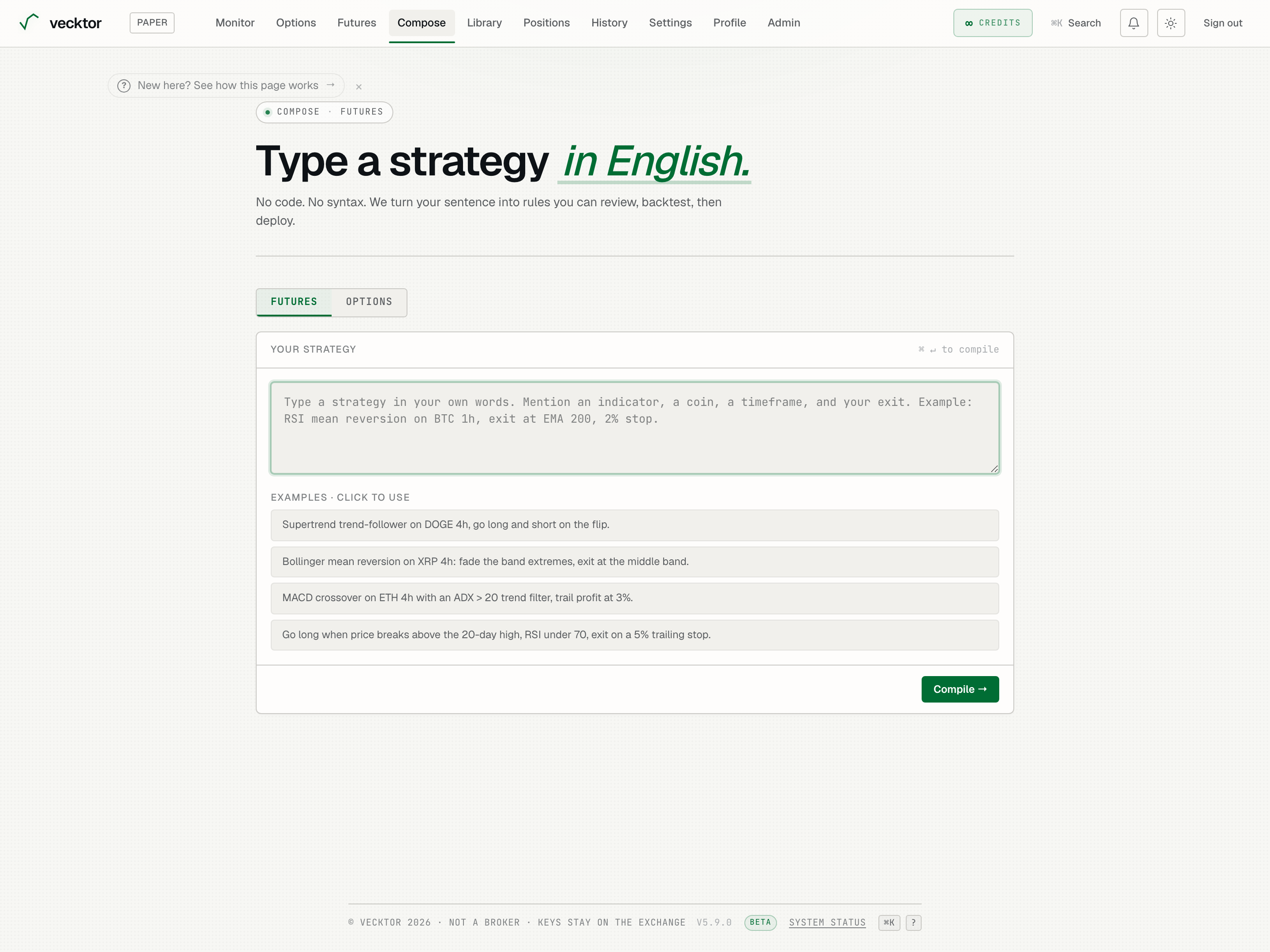
- Click the futures tab (for a BTC or ETH perpetuals strategy)
- Click the options tab (for a multi-leg options play)
- Note the box updates (prompt hint and examples follow the mode)
- Watch for the Switch to Options banner (offered, never forced)
Type your strategy in the box
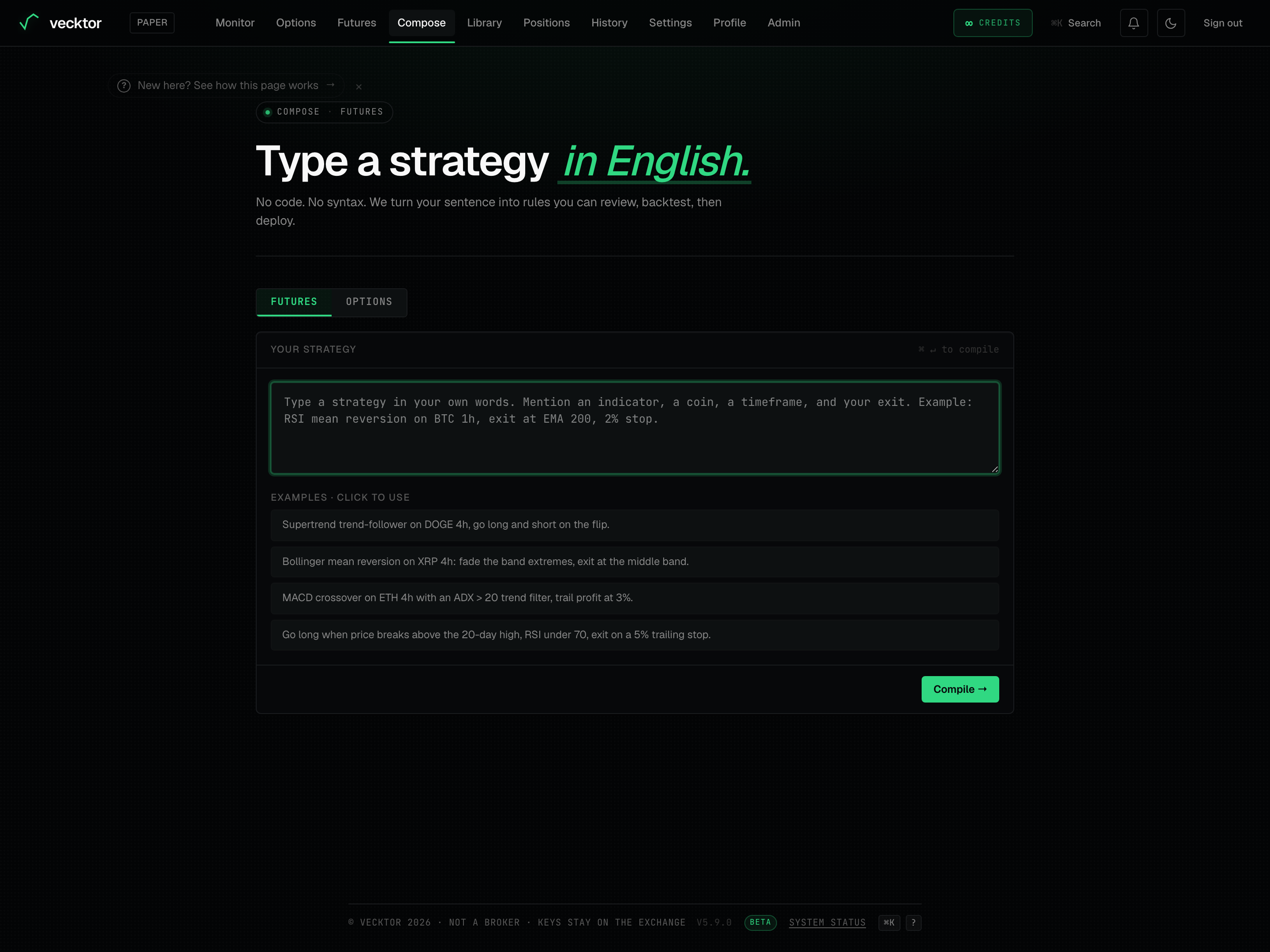
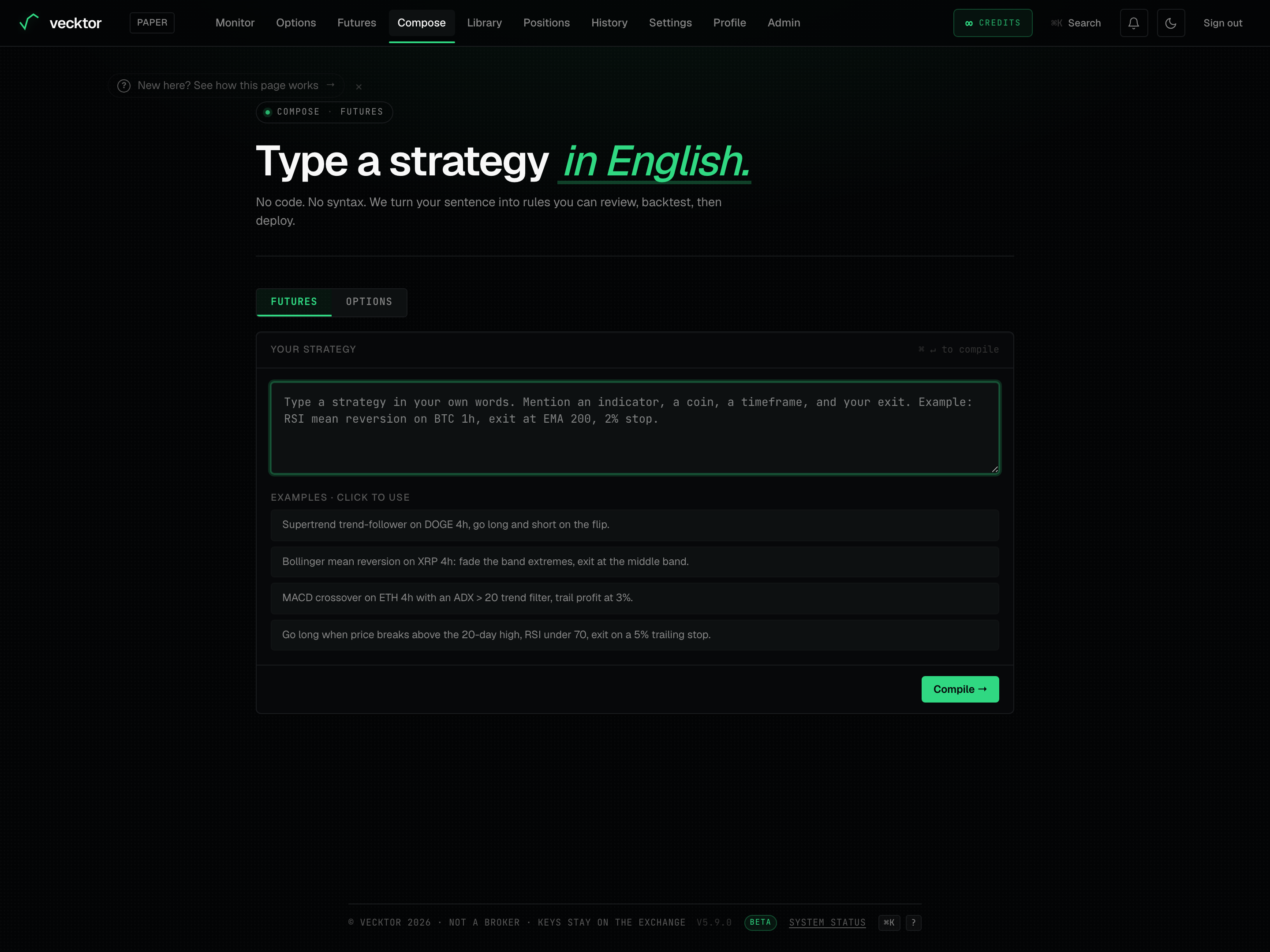
The Your strategy box is a plain text field. Write the idea the way you would say it out loud. Name an indicator, a coin, a timeframe, and how you exit. For options, name the structure, the leg detail, and the exit.
- Click in the Your strategy box.
- Type your idea in plain words. Futures example: RSI mean reversion on BTC 1h, exit at EMA 200, 2% stop.
- Options example: Sell BTC weekly straddle at 9:35am IST, 30% SL on each leg, exit 3:15pm. (A straddle is a same-strike call plus put; SL is a stop loss, the price that closes a losing leg.)
- Use the keyboard shortcut shown in the box header (the hint reads ⌘ ↵ to compile, so Cmd or Ctrl with Enter) to compile without reaching for the button.
 1Your strategy box2Compile shortcut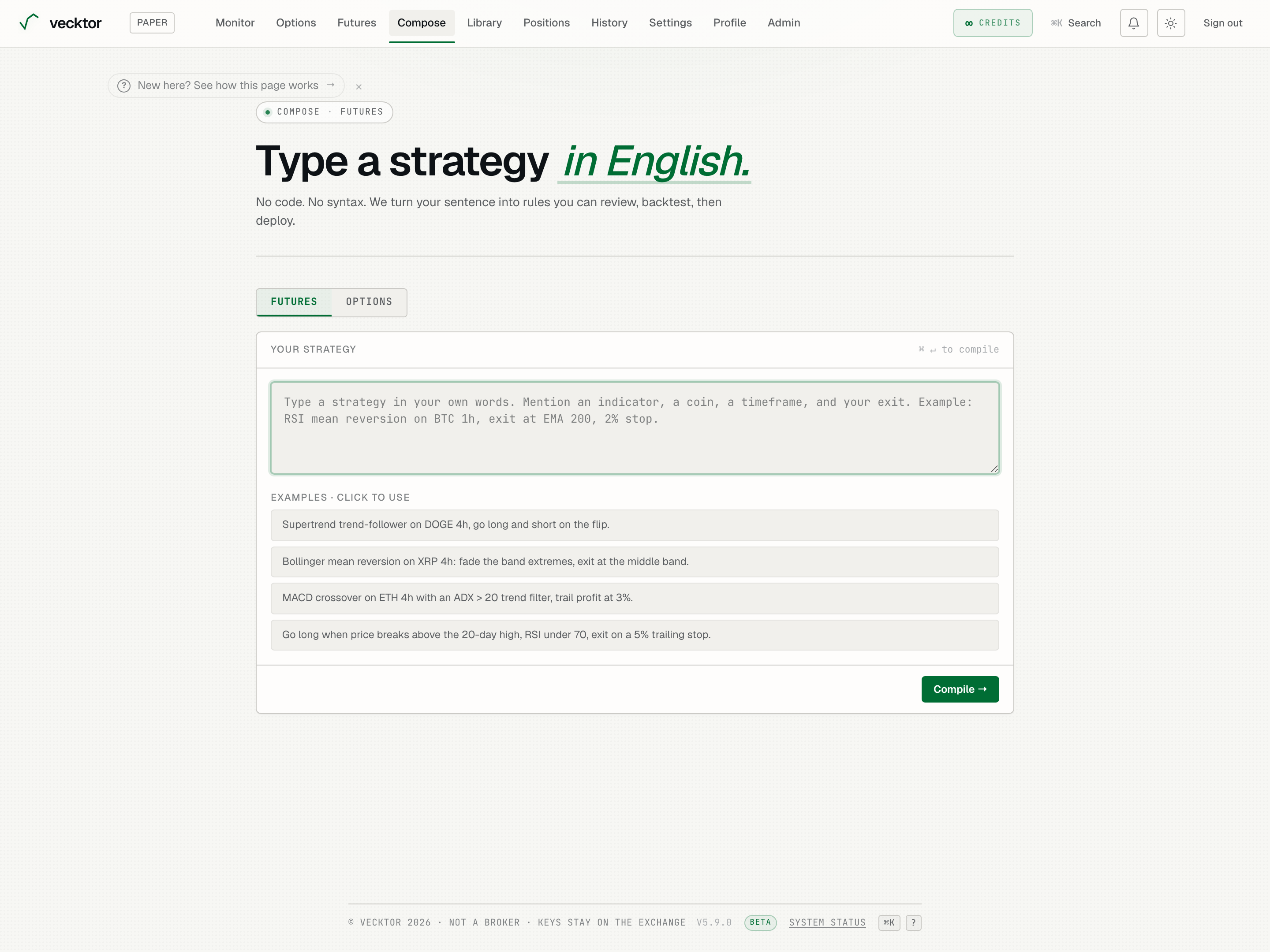
Start from an example
Under the box is an Examples · click to use list. Each one is a complete, working prompt for the current mode. They are the fastest way to see what a good prompt looks like.
- Read the four prompts under Examples · click to use.
- Click any example to drop it straight into the box.
- Edit the wording to fit your own idea, or compile it as is to see how it reads.
- Switch modes to see a different set of examples (futures examples versus options examples).
 1Click any to use it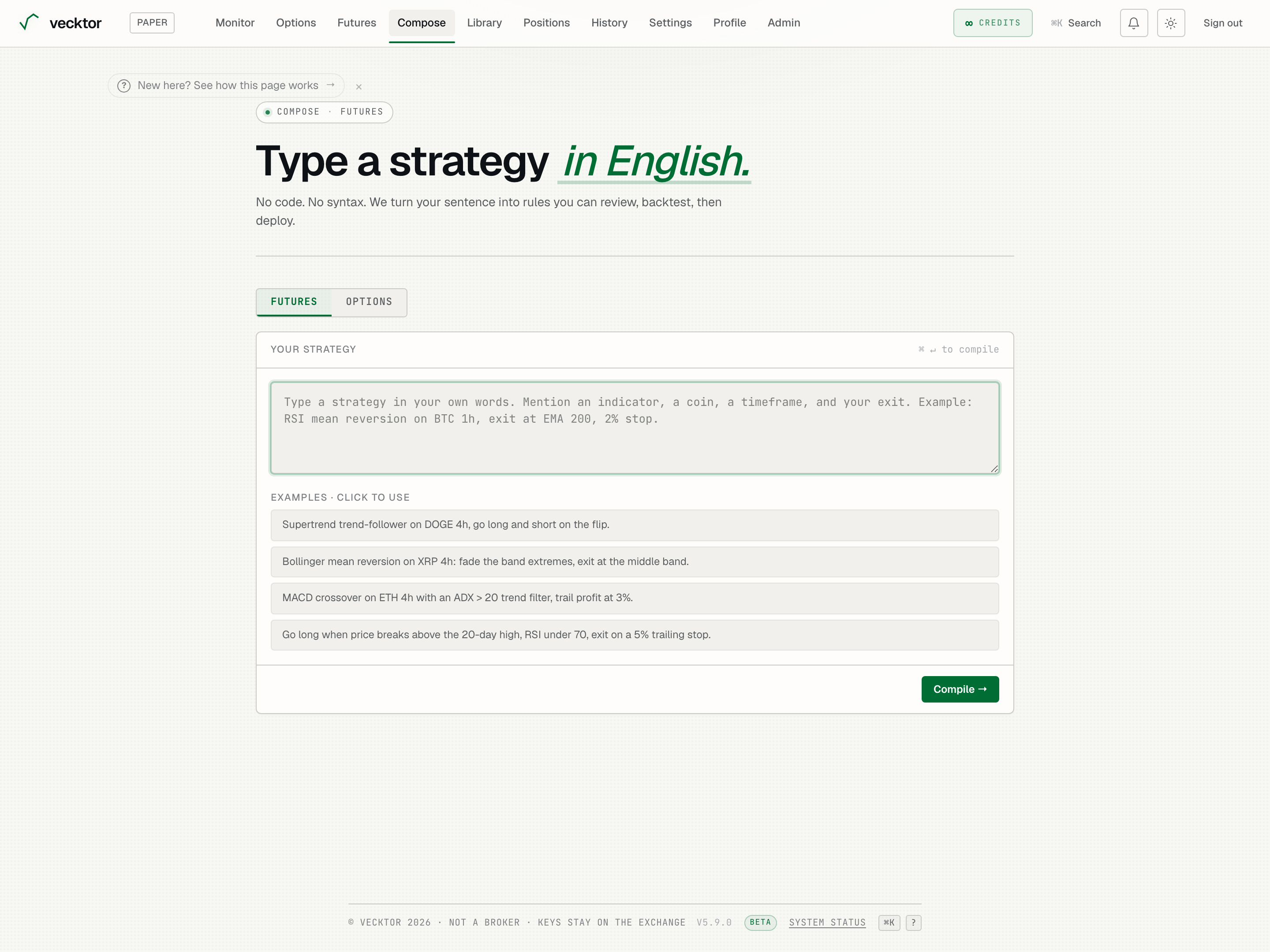
Compile your sentence into rules
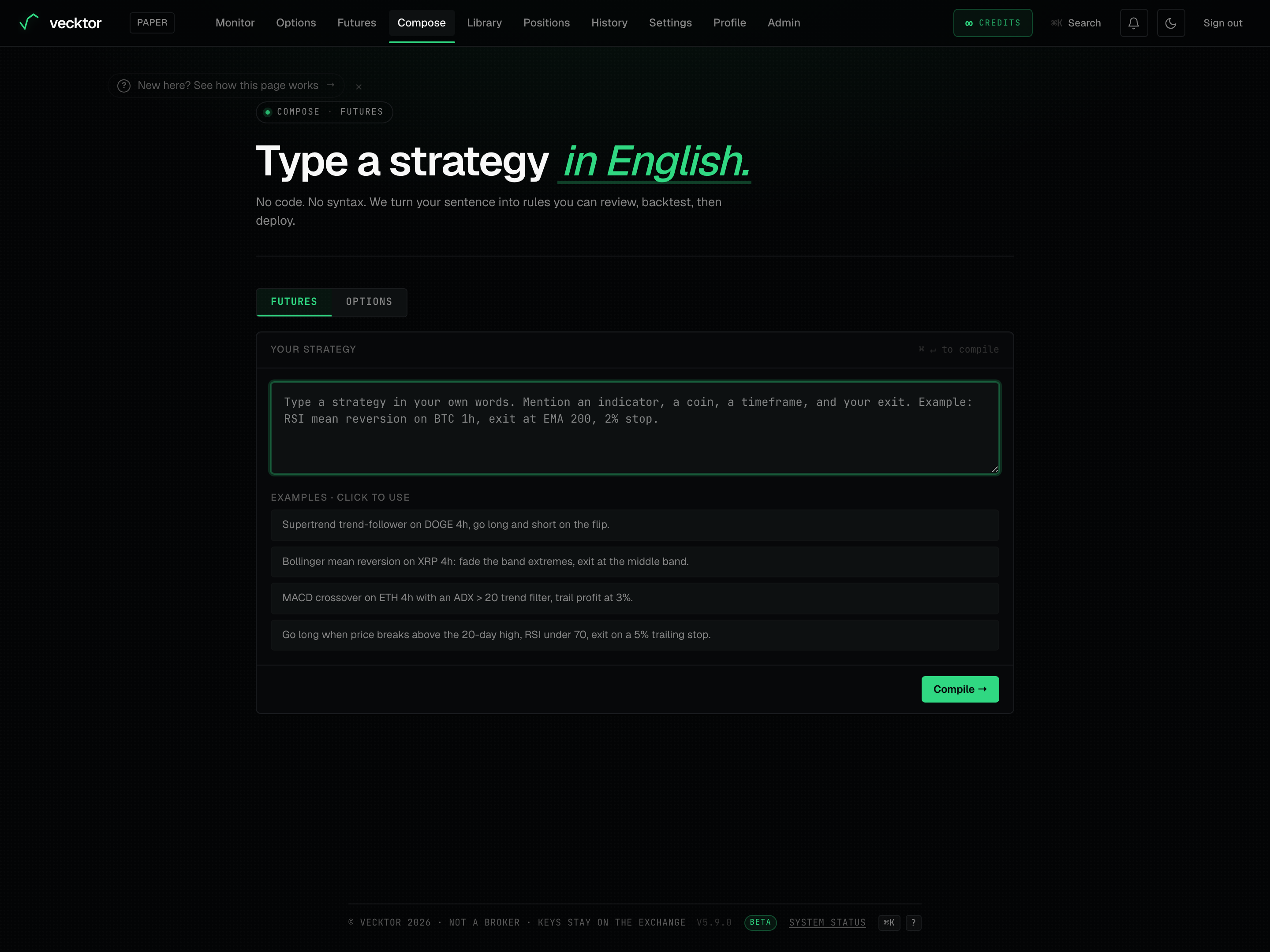
Compile reads your sentence and turns it into typed rules. A compile animation shows it reading your words, lighting up the indicators, coins, numbers, and times it recognised. This step uses your credits.
- Click Compile →.
- Watch the COMPILING screen highlight the signals it found in your prompt (the status line steps through Reading your sentence, Identifying signals, Mapping to typed rules, Validating · honest metrics).
- Wait for it to finish. The futures tab lands on a strategy card or a clarifying question; the options tab lands on a Compiled config.
- If it cannot compile, read the We couldn't compile that error, click ← Edit your strategy, and adjust your wording.
 1Compile your sentence (uses credits)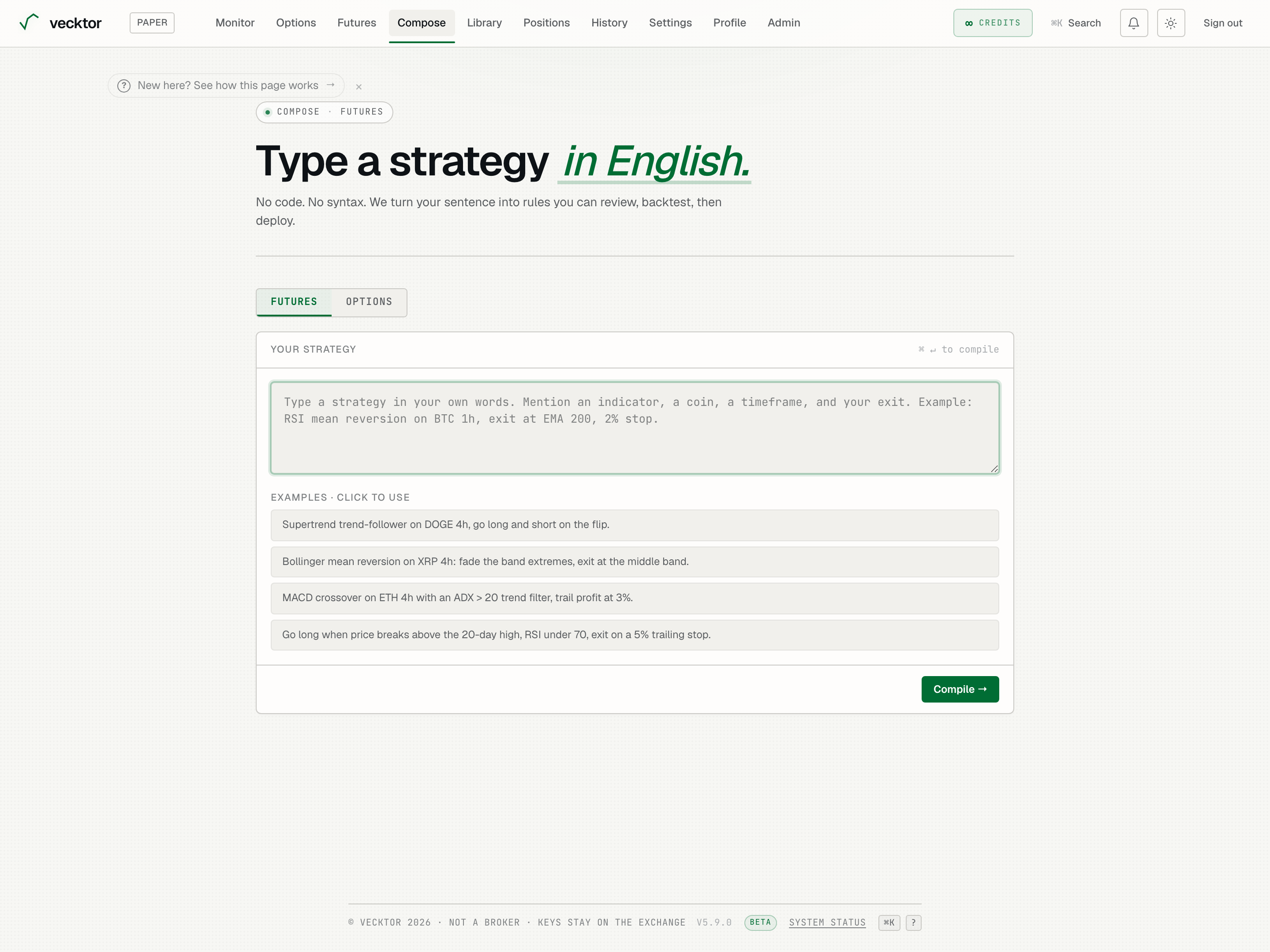
- Type your idea (indicator, coin, timeframe, exit)
- Or click an example (drops a working prompt in the box)
- Click Compile → (uses credits)
- Watch it read your words (lights up the signals it found)
Answer the One quick question card (futures tab)
In the futures tab, Compose can ask one quick question instead of guessing. This keeps the strategy true to what you meant. The card is marked One quick question with a NEEDS YOU chip.
- Read the question on the One quick question card.
- Type your answer in the Answer in plain English… box.
- Click Answer → to send it. Compose keeps the full context, so it can ask again if needed.
- Click ← Start over if you would rather rewrite the whole prompt.
Review the name, your request, and the summary
When a futures strategy compiles you get a card titled Here's what I built with an UNRUN chip (it has not been backtested yet). It shows an editable name, your original request locked for reference, and a plain-English summary of the rules.
- Read the auto-generated name under STRATEGY NAME · CLICK TO RENAME. Click it to type a clearer name.
- Read YOUR REQUEST: your exact sentence, kept so you can check it against the result.
- Read the summary: the Enters [long or short] when ALL of these are true list and the Exits when any of these are true list.
- Read the Confirm these before running rows: Stop-loss, Target, Trailing stop, Entry time, Exit time, and Trade type. Only the ones your strategy actually sets appear.
- Rename the strategy (the name travels to backtest and deploy)
- Check YOUR REQUEST (your exact words, kept for reference)
- Read the entry rules (all conditions must be true)
- Confirm the Stop-loss (only the params you set appear)
- Note the cost line (the backtest is honest about costs)
Correct it with the Not quite right? box (futures tab)
If the compiled strategy is close but not right, you do not retype the whole idea. The Not quite right? box takes a plain-English correction and updates the strategy in place.
- Type the change you want in the Not quite right? box. Its placeholder suggests examples: "make the stop 3%", "also go short", "use a 50-period RSI".
- Click Adjust → to apply it.
- Read the updated summary and Confirm these before running rows to check the change landed.
- Repeat as many times as you need. Your edited name is kept across adjustments.
View the script and the net-of-costs note
Below the summary, View the script opens the exact rules behind the strategy. A line near the bottom reminds you that the backtest is honest about costs.
- Click View the script to expand the underlying rules.
- Read them if you want to see exactly what was built, then collapse it again.
- Read the line that says Backtest with real fees, modeled funding, estimated slippage before deploying. (Funding is the periodic fee between long and short holders; slippage is the gap between expected and filled price.)
Optimize a futures strategy
Optimize ⚡ tries variations of your strategy and ranks them by how they did on data they were not tuned on. This is how you spot a strategy that only looks good because it was bent to fit the past.
- Click Optimize ⚡ on a compiled futures strategy.
- Wait on the Optimizing screen: it tries 10 variations on the same period and holds back the last 30% of data, ranking by performance there (an out-of-sample, held-back test). It can take up to 5 minutes; you can leave and results land here.
- Read the Winner block: OOS Sharpe, OOS Return, OOS DD, and Trades. (OOS means out-of-sample, the held-back data; DD is drawdown.)
- Scan the All variants table to compare each variation's Train Sharpe against its OOS Sharpe, OOS Return, OOS DD, and Trades. A footer shows the Train and OOS date segments.
- Click Use winner → to adopt the winner's rules, then backtest or deploy it.
- Click Optimize ⚡ (futures tab only, runs on credits)
- It holds back the last 30% (an honest out-of-sample test)
- Read the OOS Sharpe (judge on this, not Train)
- Heed any ⚠️ warning (good Train plus weak OOS means fitted to noise)
- Click Use winner → (adopt it, then backtest or deploy)
Backtest, deploy, or open in the builder
From the compiled card you send the strategy onward. The futures tab gives you a full backtest and a deploy path; the options tab hands off to the options builder. Everything from here is free.
- Futures: click Full backtest → to open it on the futures page and run the complete test with your name attached.
- Futures: click Deploy → to take the same strategy to the futures page and run it live.
- Options: click Open in Options Builder → to hydrate the multi-leg builder with your compiled legs.
- Click ← Edit to go back to the prompt if you want to start a fresh idea.